
“Run as administrator” is the answer to about half the Win32 Disk Imager problems people post on Reddit. Error 5 Access Is Denied? Run as admin. Empty device dropdown? Run as admin. Write fails silently? Run as admin. The reason this matters so much: writing raw bytes to a removable disk is a privileged operation in Windows, you can’t do it as a standard user, period. Win32 Disk Imager doesn’t enforce this on launch (most apps don’t), it just fails silently or with cryptic errors when it tries to access the disk without elevation.
This article covers the multiple ways to launch Win32 Disk Imager as administrator, the difference between one-off elevation and permanent elevation, what specifically requires admin (and what doesn’t), how to handle UAC prompts and the rare cases where UAC is broken or restricted, and the security implications of running an unsigned app as admin. Plus the corporate/managed-machine scenarios where you literally can’t get admin access.
TL;DR: Right-click Win32DiskImager.exe → Run as administrator. UAC prompt, Yes. Permanent: right-click .exe → Properties → Compatibility tab → check “Run this program as an administrator” → Apply. Now every launch is elevated automatically.
Why Win32 Disk Imager Needs Admin Privileges
Three Windows API calls Win32 Disk Imager makes that require elevated privileges:
CreateFileW with GENERIC_WRITE on \\.\PhysicalDriveN. Opens a raw write handle to a physical disk. Requires SeManageVolumePrivilege (admin only).
DeviceIoControl with FSCTL_LOCK_VOLUME. Acquires exclusive access to a volume. Required to prevent other processes from interfering during a write. Admin only.
DeviceIoControl with FSCTL_DISMOUNT_VOLUME. Unmounts the volume so the raw write doesn’t conflict with the filesystem driver. Admin only.
Without admin, these calls return ERROR_ACCESS_DENIED (5). Win32 Disk Imager surfaces this as the famous “Error 5” or just silently fails to enumerate drives. Either way, you can’t write.
Read operations (Read button) need similar privileges because they bypass the filesystem to read raw sectors. Same admin requirement.
Method 1: One-Off Run as Administrator
The basic approach for occasional use:
- Find the Win32 Disk Imager shortcut (Start menu, Desktop, or wherever you have it).
- Right-click the shortcut.
- Click “Run as administrator” from the context menu.
- UAC prompt appears: “Do you want to allow this app to make changes to your device?” Click Yes.
- Win32 Disk Imager launches with elevated privileges.
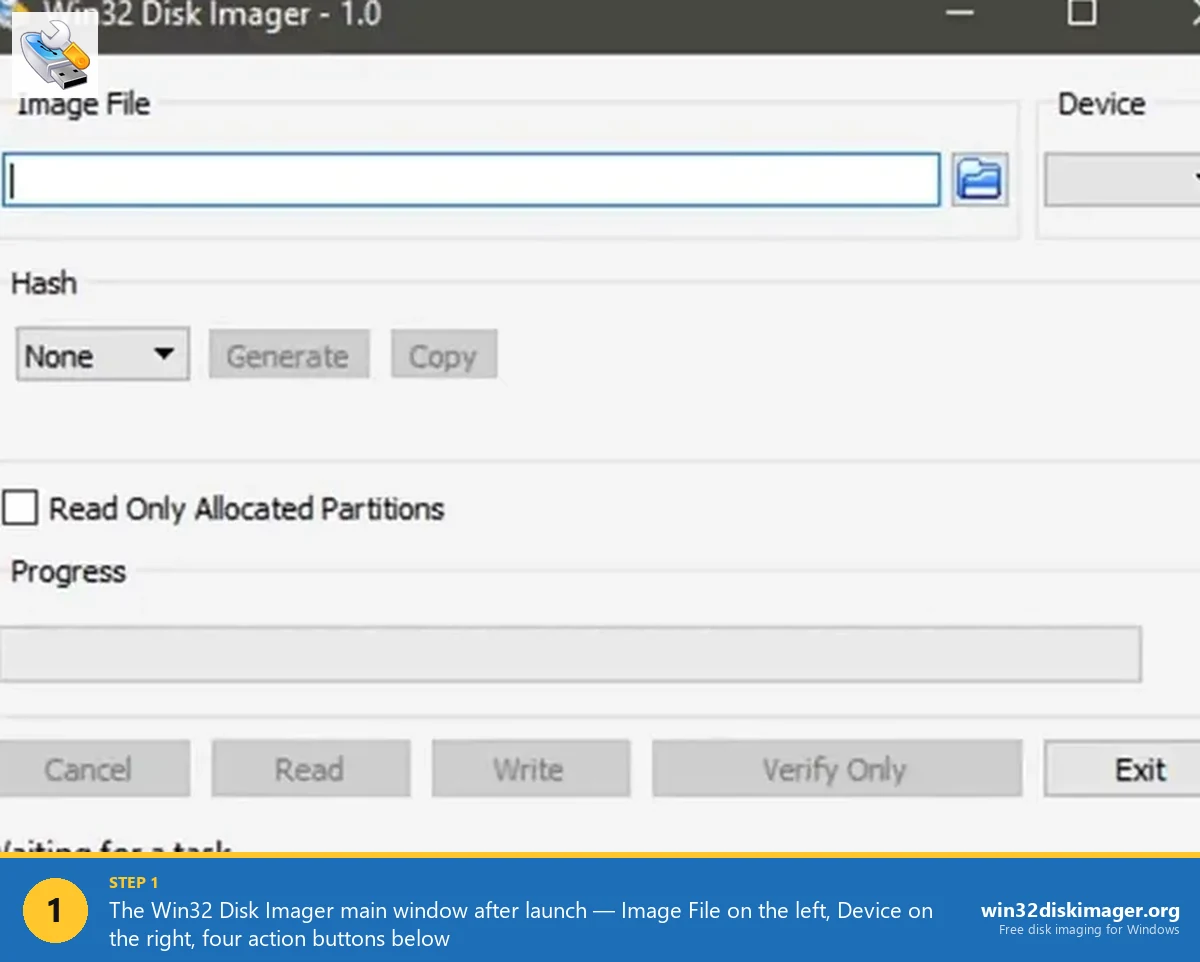
Visual confirmation you’re admin: the window title bar shows “Administrator: Win32 Disk Imager – 1.0” instead of just “Win32 Disk Imager – 1.0”. If your title bar doesn’t say Administrator, you’re not elevated.
You have to repeat this every time you launch the app. Annoying for daily use; fine for occasional use.
Method 2: Permanent “Always Run as Admin” via Compatibility Settings
For repeated use, set elevation as the permanent default:
- Navigate to where Win32 Disk Imager is installed: usually
C:\Program Files (x86)\ImageWriter\. - Right-click
Win32DiskImager.exe(the actual .exe, not a shortcut). - Properties.
- Switch to the Compatibility tab.
- Under “Settings,” check the box: “Run this program as an administrator.”
- Click “Change settings for all users” if you want this to apply to every Windows user account on this PC.
- Apply, OK.
Now every launch of Win32 Disk Imager (from any shortcut, Start menu, file association, doesn’t matter) automatically requests admin via UAC. You still see the UAC prompt, but the app launches elevated by default.
This is what I do on every PC I install Win32 Disk Imager on. Three minutes of one-time setup, no more “oh wait, did I run as admin?” questions later.
Method 3: Pin to Taskbar with Admin Property
If you want a one-click admin launch from the taskbar:
- Right-click Win32 Disk Imager in Start menu → Pin to taskbar.
- Right-click the new taskbar icon → right-click “Win32 Disk Imager” in the popup menu → Properties.
- In Properties, switch to Shortcut tab → Advanced → check “Run as administrator.”
- OK twice.
Click the taskbar icon, UAC prompt, app launches elevated. Cleaner than the right-click-Run as admin dance every time.
Method 4: Keyboard Shortcut to Launch Elevated
For keyboard-driven workflow:
- Find the Win32 Disk Imager shortcut in Start menu.
- Drag it to your Desktop.
- Right-click the desktop shortcut → Properties → Shortcut tab.
- In “Shortcut key” field, press Ctrl+Alt+W (or whatever combo you want). Windows fills it in.
- Click Advanced → check “Run as administrator.” OK.
- OK.
Now Ctrl+Alt+W from anywhere launches Win32 Disk Imager elevated. UAC prompt, Yes, working.
Caveat: keyboard shortcuts only work if the shortcut is on the Desktop, in the Start Menu folder, or in C:\Users\Public\Desktop.
Method 5: Run as Admin via Command Prompt or PowerShell
For scripted launches:
From admin Command Prompt:
"C:\Program Files (x86)\ImageWriter\Win32DiskImager.exe"Inherits the cmd’s admin context. Win32DI launches elevated immediately.
From PowerShell as admin:
Start-Process "C:\Program Files (x86)\ImageWriter\Win32DiskImager.exe" -Verb RunAsThe -Verb RunAs parameter forces UAC even from a non-elevated PowerShell.
Useful for batch scripts that prep Win32DI launches with specific environment variables or working directory.
Handling the UAC Prompt
Every elevated launch triggers UAC (User Account Control) prompt. Color-coded:
- Blue background: Microsoft-signed app. Trustworthy.
- Yellow/Gray background: Other publisher (or unsigned). Caution.
- Red background: Blocked by administrator policy. Can’t be elevated.
Win32 Disk Imager is unsigned, so you’ll see the yellow/gray UAC prompt. This is expected. Click Yes.
If you want to make UAC prompts less intrusive (smoother experience for tools you use often):
- Control Panel → User Accounts → Change User Account Control settings.
- Slider: drop from “Always notify” to “Notify me only when apps try to make changes to my computer (do not dim my desktop).”
Same security level (you still get a Yes/No prompt) but the desktop doesn’t dim, faster perceived response.
Don’t disable UAC entirely (slider all the way down). That removes admin elevation enforcement and is a security regression.
Skipping UAC Entirely (For Power Users)
If you’re sure you trust Win32 Disk Imager and don’t want to click UAC every launch, you can create a Task Scheduler task that bypasses UAC:
- Open Task Scheduler (taskschd.msc).
- Action → Create Task (not Create Basic Task).
- General tab: name = “Win32DiskImager-Admin”, check “Run with highest privileges.”
- Triggers tab: leave empty (we’ll trigger manually).
- Actions tab: New → Start a program →
C:\Program Files (x86)\ImageWriter\Win32DiskImager.exe. - Conditions tab: uncheck “Start the task only if computer is on AC power” (if you’re on a laptop).
- OK.
Now create a Desktop shortcut to launch this task:
- Right-click Desktop → New → Shortcut.
- Type:
schtasks /run /tn "Win32DiskImager-Admin". - Name it whatever (e.g., “Win32DI Admin”).
- OK.
Double-click the shortcut. Win32DI launches as admin without UAC prompt.
Security tradeoff: anyone with access to your account can now launch this elevated tool without confirmation. Use only if you’re the only user of the PC.
Confirming Win32 Disk Imager Is Actually Elevated
Two visual confirmations:
Title bar: “Administrator: Win32 Disk Imager – 1.0” instead of “Win32 Disk Imager – 1.0”.
Task Manager: Open Task Manager → Details tab → DiskImager.exe row. Check the “Elevated” column. Should say “Yes”. If “No”, you’re not actually elevated despite seeing UAC.
If the Elevated column isn’t visible: right-click any column header → Select columns → check “Elevated” → OK.
If you’ve gone through the UAC prompt but Win32DI still isn’t elevated, something’s wrong with your User Account Control configuration. Possible causes:
- UAC disabled at registry level (HKLM\SOFTWARE\Microsoft\Windows\CurrentVersion\Policies\System\EnableLUA = 0). Re-enable with EnableLUA = 1.
- You’re already running as a Microsoft Account with no admin rights (created Microsoft Account profile is sometimes only Standard User).
- Group Policy restriction blocking elevation for this app.
The “Why doesn’t this work as Microsoft Account user?” Trap
Common confusion on Windows 11. When you set up a fresh Win 11 install with a Microsoft Account, you’re created as an “Administrator” type user. So why do some apps still fail with permission errors?
Because “Administrator” type doesn’t mean you’re auto-elevated. UAC still applies. Your account has the ability to elevate (you can click Yes on UAC), but apps don’t run elevated by default unless you tell Windows.
This is different from the literal “Administrator” account (the built-in one with SID ending -500), which used to skip UAC entirely on older Windows versions. That account is disabled by default on Win 10/11 and you shouldn’t enable it for daily use.
Practical implication: even if Settings → Accounts says you’re Administrator, you still need to right-click → Run as administrator (or set Compatibility → admin) for Win32 Disk Imager. Being Admin type doesn’t mean apps auto-elevate.
What If You’re on a Managed Corporate PC?
Sometimes you’re locked out. Workplaces, schools, public access PCs may have admin elevation completely disabled for users. Indicators:
- UAC prompt asks for an admin’s password (which you don’t have) instead of Yes/No.
- UAC prompt is replaced with “Your administrator has blocked this app.”
- The “Run as administrator” option is missing from right-click menus.
Options:
- Ask IT to install Win32 Disk Imager system-wide and elevate it via group policy. Most IT teams will do this for legitimate use cases.
- Use a personal laptop instead of the corporate PC for imaging work.
- Boot the corporate PC from a Linux Live USB (if BIOS allows) and use Linux
dd. Bypasses Windows entirely. - Use a portable Windows-To-Go USB with Win32 Disk Imager already installed and your account being admin on that USB.
Don’t try to bypass corporate restrictions. Get caught and you’re explaining yourself to IT and management.
What Doesn’t Need Admin Privileges
Some Win32 Disk Imager actions work without admin:
- Launching the app itself. The window opens, you can see the UI, click around.
- Selecting an Image File. Browsing your filesystem doesn’t need admin.
- Generating a hash of an IMG file (Hash dropdown → Generate). Hashing is just file reading.
- Cancel button on a stuck operation.
What does need admin:
- Enumerating physical/removable devices (so the Device dropdown is empty without admin).
- Reading from a physical drive (Read button).
- Writing to a physical drive (Write button).
- Verifying against a physical drive (Verify Only).
Basically any action that touches the physical disk needs elevation. Anything that’s just reading/writing files in your home directory doesn’t.
Security Considerations
Running an unsigned tool as administrator is technically a security risk. Win32 Disk Imager is open-source and widely vetted, so the actual risk is minimal. But the principle is real: an admin-elevated process can do anything to your PC.
Mitigations:
- Download from official sources. win32diskimager.org or SourceForge. Don’t grab from random mirrors.
- Verify the installer’s hash if the publisher provides one.
- Whitelist DiskImager.exe in Defender rather than disabling Defender entirely.
- Don’t run Win32DI from a USB stick someone gave you. If the USB has been compromised, the .exe could be modified.
For the typical home or maker user: running Win32DI as admin is fine. For high-security corporate/government environments: get IT to deploy a signed/verified version.
Comparison: Method Pros and Cons
Quick reference for picking which approach fits your workflow:
| Method | Setup Time | Per-Launch Effort | Best For |
|---|---|---|---|
| Right-click → Run as administrator (Method 1) | 0 sec | 3 clicks + UAC | Occasional use |
| Compatibility → Always run as admin (Method 2) | 30 sec | 2 clicks + UAC | Daily/weekly use |
| Pinned taskbar shortcut with admin (Method 3) | 1 min | 1 click + UAC | Power users |
| Keyboard shortcut (Method 4) | 1 min | Hotkey + UAC | Keyboard-driven workflow |
| Command line / PowerShell (Method 5) | 0 sec | Type command + UAC | Scripted launches |
| Task Scheduler bypass UAC | 5 min | 1 click, no UAC | Single-user PCs only |
For most people, Method 2 is the right choice. Set once, forget. UAC prompt is one extra click per launch, acceptable trade for security.
Common Issues
“Run as administrator” option missing from right-click menu. File system permissions on the .exe are wrong. Right-click .exe → Properties → Security tab → check that your user has Read & Execute. If not, the file might be in a folder where you don’t have full permission.
UAC prompt doesn’t appear, app just doesn’t launch. UAC may be disabled at OS level. Re-enable: Control Panel → User Accounts → Change UAC settings → set slider to default (third from top).
UAC prompt appears but clicking Yes does nothing. Indicator of malware-suspicious behavior or a corrupted UAC subsystem. Run sfc /scannow from admin cmd to repair Windows.
App launches but says “Failed to enumerate drives” or empty Device dropdown. Despite UAC, the elevation didn’t fully apply. Verify in Task Manager → Details → Elevated column. If “No”, clean reinstall Win32 Disk Imager.
“This app has been blocked by your system administrator.” Group Policy restriction on a managed PC. Talk to IT.
FAQ
Why does Win32 Disk Imager need admin every time? Can I make it permanent?
Yes, set it via Properties → Compatibility → “Run this program as an administrator.” Now every launch is elevated automatically (still shows UAC prompt for confirmation, just one click instead of two).
Is it safe to always run Win32 Disk Imager as admin?
For a tool you use, yes. The risk of admin elevation is that the tool can do things you didn’t intend. Win32 Disk Imager only does what you click, so the risk is contained. Don’t apply this principle to random apps from the internet.
Can I use Win32 Disk Imager without administrator privileges at all?
You can launch the app, but you can’t actually do anything useful (Read, Write, Verify all require admin). Without admin, Win32 Disk Imager is essentially a viewer-only mode that doesn’t see drives.
Do I need admin to install Win32 Disk Imager?
The installer needs admin to install to Program Files. You can install to a user folder (%LOCALAPPDATA%) without admin, but you still need admin to actually use the app.
Does running as admin fix Error 5: Access Is Denied?
It’s the most common fix for Error 5 (resolves about half of cases). Other Error 5 causes include Controlled Folder Access blocking, antivirus interference, SD card lock switches. See our full Error 5 fix guide.
Can I bypass UAC for Win32 Disk Imager?
Yes, via Task Scheduler trick (described above). Creates a scheduled task with elevated privileges that runs Win32DI. Manual launch via the task bypasses UAC. Use sparingly; reduces security awareness.
How do I tell if my user account is admin or standard?
Settings → Accounts → Your info. If account type says “Administrator”, you’re admin. If “Standard User”, you’re not. Standard users can elevate via UAC if an admin password is provided.
Can I make a Standard user elevate Win32 Disk Imager without admin password?
No. UAC enforcement is strict. Standard users always need an admin password. The only way around it is to add the user to the Administrators group, which is a permanent privilege change, not just a Win32DI thing.
Why does Win32 Disk Imager show “Administrator” in title even after I disable elevation?
Maybe a previous launch was elevated and the title is stale. Close all Win32DI processes (Task Manager → End task), restart, check title.
Does running Win32DI as admin slow it down?
No. Admin elevation doesn’t affect performance. The actual write speed is bounded by USB and SD card speed regardless of privilege level.
Can I run Win32 Disk Imager as a different user (RunAs) without logging out?
Yes. Hold Shift, right-click .exe → “Run as different user.” Provide credentials. App runs as that user. Useful for shared lab PCs where one user is admin and others aren’t.
What about Windows Sandbox?
Windows Sandbox is an isolated Windows VM. You can install and run Win32 Disk Imager there, with admin privileges inside the sandbox. Useful for paranoid testing of unsigned tools. But Windows Sandbox doesn’t expose USB devices to the inner Windows, so you can’t actually flash anything.
Wrapping Up
Win32 Disk Imager needs admin privileges for almost every useful operation. Set it permanent via Compatibility → Run as administrator on the .exe Properties, and you’ll never have to think about it again. The UAC prompt is annoying once but harmless. For the related issues that “run as admin” doesn’t fix, see the Error 5 guide, the device detection guide, and the won’t open guide.
Related Guides
Pair this guide with the rest of the Win32 Disk Imager knowledge base. These cover the adjacent workflows you’ll hit when working with disk images, bootable USBs, and Windows partition management.
- Win32 Disk Imager Error 5: Access Is Denied — 9 Working Fixes — The full troubleshooting tree for Error 5 on Win 10/11 — Controlled Folder Access, antivirus conflicts, SD lock switches, Safe Mode, and Group Policy.
- Win32 Disk Imager Won’t Open on Windows 11 — Compatibility Fix Guide — Fix silent launch failures, splash-and-disappear, and the Google Drive / Controlled Folder Access conflicts that stop Win32DI from opening on Win 11.
- Win32 Disk Imager Not Detecting USB / SD Card — Fix Guide — Empty Device dropdown fixes — full reset sequence, Virtual Disk Service restart, driver updates, and the Google Drive/OneDrive interference trap.
- How to Use Win32 Disk Imager — Complete Beginner Guide — The full reference for the Win32 Disk Imager tool itself — install, UI walkthrough, and common workflows.