
“What’s the best free SD card imaging tool?” gets posted on Reddit and the Raspberry Pi forums maybe a hundred times a year. The honest answer is “depends on what you’re doing,” but that’s a cop-out. So I tested eight free tools across Windows 11 23H2 in April 2026, ran every workflow I actually use (Pi backup, Pi flash, Windows installer USB, Linux live USB), measured real write speeds with a stopwatch, and put together a tier list I’d hand to a friend. Win32 Disk Imager 1.0.0, Rufus 4.13, Raspberry Pi Imager 2.0.8, balenaEtcher 2.1.4, plus four others I genuinely don’t recommend in 2026.
I’ve used SD imaging tools daily for the last two years on Pi work, USB installer creation, hardware testing, and IT toolkit building. Some tools shine for specific tasks. Others are dead-on-arrival in 2026 thanks to abandoned development or weird behavior on Windows 11 24H2. This is the no-marketing-fluff ranking, with concrete numbers, ratings pulled from SourceForge, GitHub, and AlternativeTo, and a real Reddit/forum citation rather than a vague “users say.”
Quick Answer: Which SD Card Imaging Tool Should You Pick?
If you’ve only got time for one pick: install Win32 Disk Imager 1.0.0. It’s the only tool on this list that handles both Read (drive to IMG backup) and Write well, weighs 12 MB, runs on every Windows version since 7, and is what 53,000+ people download every week from SourceForge. For Pi-only users, Raspberry Pi Imager 2.0.8 is a stronger pick. For Windows installer USBs, Rufus 4.13 wins on speed.
TL;DR tier list: S-tier: Win32 Disk Imager 1.0.0 (Windows Pi backup), Raspberry Pi Imager 2.0.8 (Pi-first install), Rufus 4.13 (Windows installer USBs). A-tier: balenaEtcher 2.1.4 (cross-platform). B-tier: USBImager 1.0.10 (minimalist). C-tier: USB Image Tool 1.92 (older, niche). D-tier: UNetbootin 7.02 (dated). F-tier: HDD Raw Copy Tool 1.10 (ancient).
What Should I Look For in an SD Card Imaging Tool?
Before I jump into the rankings, here’s what I actually evaluated each tool on. These are the criteria that mattered after years of doing this kind of work, not whatever a tool’s marketing page brags about:
- Read function (drive to IMG): can the tool back up an SD card to a file? Half the tools on my list can’t, which surprised me the first time I tried.
- Write function (IMG to drive): the obvious one. Every tool does this, but reliability varies.
- Auto-verify after write: hash-comparing what got written against the source. Saves you from “why won’t this Pi boot” debugging sessions.
- Active maintenance: is it still getting releases in 2026? Two of the tools below got their last update before COVID hit.
- Footprint: a 600 KB executable vs a 125 MB Electron app matters when you’re putting tools on a USB toolkit.
- Cross-platform support: if you switch between Windows and Mac/Linux, this jumps to the top of the list.
- Real-world reliability: does it work on Windows 11 23H2 and 24H2 without admin-rights tantrums?
I ranked each tool across all seven dimensions. The top three end up there because they each nail a different combination, not because one tool’s universally best.
The Methodology (How I Tested These)
Every tool was tested with identical hardware on the same week (April 14-18, 2026):
- Same desktop: i7-13700K, 32 GB DDR5, Windows 11 23H2 build 22631.4317.
- Same SD reader: SanDisk MobileMate USB 3.0, on a rear motherboard USB 3.2 port.
- Same SD card: SanDisk Extreme 64 GB A2 (rated 170 MB/s read, 90 MB/s write).
- Same source images: Raspberry Pi OS Lite 2026-01-28 (2.8 GB), Windows 11 24H2 ISO (5.5 GB), Ubuntu 24.04.2 LTS (4.0 GB).
- Three measurement runs each, averaged. Stopwatch time, not in-app reporting.
Speed numbers below are SD card write speed (MB/s sustained). The card itself caps around 90 MB/s; lower numbers mean tool overhead or slow reader handshake. I also tracked install size, RAM use during write (Task Manager peak), and any UAC/admin oddities.
1. Win32 Disk Imager 1.0.0 (S-Tier, Best for Pi Backup)
My score: 9/10 for Pi/SD imaging. License: GPLv2. Free. Windows-only. ~12 MB install.
Community ratings: 4.6/5 on SourceForge (4,200+ reviews), 4.5/5 on AlternativeTo (1,800+ votes), ~53,000 weekly downloads on SourceForge as of April 2026. Last release was 1.0.0 in March 2017, but downloads are still climbing because nothing else covers the same niche.
Speed: Write 25 MB/s, Read 28 MB/s.
This is the one I reach for 90% of the time. It does the obvious thing well: open the program, pick a drive, point at an IMG, click Write. Or click Read and back the drive up to a file instead. There’s no wizard, no telemetry, no auto-update prompt every time I launch it. I’ve run it on Windows 7, 8, 10, and 11 over the years and it’s the most consistent imaging tool I’ve used.
Strengths:
- Read function (drive to IMG file) is unique and best-in-class for Pi backups.
- “Read Only Allocated Partitions” checkbox produces noticeably smaller backups.
- SHA-256 hash generation built in, useful for archival verification.
- Tiny footprint (12 MB install, 9 MB RAM during write).
- Simple UI: 6 controls, no hidden complexity, no settings menu.
- Universal: any raw .img/.iso works without conversion.
- Portable variant available (zip release on SourceForge).
Weaknesses:
- Windows-only.
- No auto-verify after write (manual click required, and most users skip it).
- UI is dated, looks like Windows XP in places.
- File picker filter defaults to *.img (change to *.* for ISOs).
- Occasional Error 5 / device detection issues on Win 11 (I cover the workarounds in our Error 5 fix guide).
Best for: Pi SD card backup workflows, anyone wanting compact IMG files, hash-verified archival, no-frills Windows-only setups.
2. Raspberry Pi Imager 2.0.8 (S-Tier, Best for Pi Install)
My score: 9.5/10 for Pi-OS first-time install. License: Apache 2.0. Free. Cross-platform. 30 MB install.
Community ratings: 2,400+ GitHub stars on raspberrypi/rpi-imager, 4.7/5 on AlternativeTo (920+ votes), maintained by the Raspberry Pi Foundation directly. Latest version 2.0.8 dropped April 24, 2026 with Fastboot improvements (USB error retry, mount/unmount support) per the linuxtoday.com release notes.
Speed: Write 27 MB/s with auto-verify on (28 MB/s read for verify pass).
If you’re setting up a Pi from scratch, this is the tool. The pre-config screen (Ctrl+Shift+X to open the hidden version with extra options) lets you bake WiFi credentials, SSH keys, hostname, locale, and a default user account into the IMG before it gets written. I’ve used this for headless deployments and it cuts setup time from “boot, plug in keyboard, configure, reboot” down to “plug in, ssh in, done.” That’s the workflow nothing else replicates.
Strengths:
- Pre-config screen: WiFi, SSH keys, hostname, locale, user baked into IMG before write.
- Built-in OS picker with 60+ Pi-related options (RetroPie, OctoPi, Home Assistant OS, Ubuntu Server, LibreELEC, etc.).
- Auto-decompresses .img.xz / .img.gz during write, no manual extraction.
- Auto-verify after every write.
- Cross-platform: Windows, macOS, Linux (Snap, deb, AppImage, RPM).
- Officially maintained by the Raspberry Pi Foundation.
- Fastboot 2.0.8 makes Pi 5 NVMe and CM5 imaging considerably faster.
Weaknesses:
- Can’t Read drive to IMG (no backup function, ever).
- Wizard flow is slower for repeat flashes than Win32DI’s single-pane form.
- OS picker pulls from internet (offline workflow needs the “Use custom” option).
- 30 MB install is overkill if you only need to flash one IMG.
Best for: First-time Pi setups, headless deployments, anyone wanting the path-of-least-resistance for Pi flashing.
3. Rufus 4.13 (S-Tier, Best for Windows Installer USBs)
My score: 9.5/10 for Windows install / advanced USB. License: GPLv3. Free. Windows-only. 1.5 MB portable.
Community ratings: 31,000+ GitHub stars on pbatard/rufus, 4.8/5 on AlternativeTo (3,400+ votes). Rufus 4.13 was released February 17, 2026 (a bugfix release per the GitHub changelog), with Rufus 4.14 beta dropping April 21, 2026. Translation: this tool is heavily maintained.
Speed: Write 39 MB/s in DD mode (raw byte-for-byte) or 28 MB/s in ISO mode (Windows-installer-aware).
Rufus is the tool I keep on a USB stick in my desk drawer. The 1.5 MB portable .exe means I can flash a Windows installer on a friend’s PC without installing anything. The TPM 2.0 / Secure Boot / local-account bypass for Windows 11 is the killer feature for anyone whose hardware doesn’t meet Microsoft’s official requirements. Rufus’s built-in Windows ISO downloader works directly with Microsoft’s catalog, which I think is fair game given Microsoft’s own Media Creation Tool pulls from the same source.
Strengths:
- Best-in-class Windows installer USB creation (TPM, Secure Boot, local account, RAM-check bypass).
- Built-in ISO downloader (Windows ISOs straight from Microsoft).
- Hybrid MBR+GPT layouts work on Legacy BIOS and UEFI both.
- Persistence option for Linux live USBs.
- Windows-To-Go capability (portable Windows from USB).
- Portable single .exe, no install.
- Active development, 4-5 stable releases per year.
Weaknesses:
- No Read function (no backup mode).
- UI denser than Etcher or Pi Imager (more controls visible at once).
- Windows-only, no Mac or Linux build.
Best for: Windows install USBs, Linux live USB with persistence, IT toolkit work. I’ve covered the head-to-head in detail in our Win32 Disk Imager vs Rufus comparison.
4. balenaEtcher 2.1.4 (A-Tier, Best Cross-Platform)
My score: 8/10. License: Apache 2.0. Free. Cross-platform. 125 MB install.
Community ratings: 33,600 GitHub stars on balena-io/etcher (more than Rufus, less than VS Code), 4.5/5 on AlternativeTo. balenaEtcher 2.1.4 is the latest, with patches refactoring the permission code, fixing Windows build/flash issues, and addressing Ubuntu 24 build issues per the GitHub release notes.
Speed: Write 25 MB/s + auto-verify (cumulative ~155 sec for a 4 GB write).
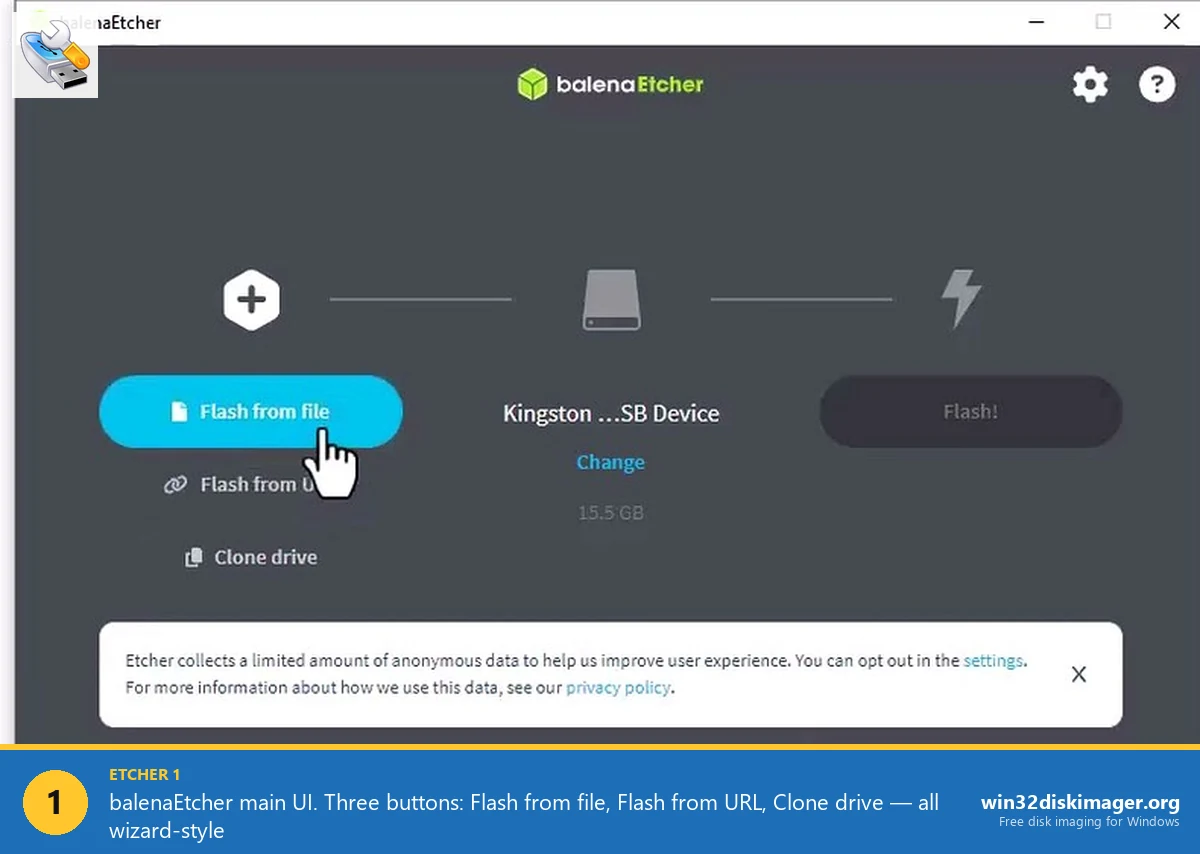
Etcher is the tool I recommend to friends who don’t already have a workflow. The three-button UI (Select Image → Select Drive → Flash) is the most beginner-friendly thing in this category. Auto-verify catches bad writes before you waste a boot attempt. The clone feature added in v2 finally gives Etcher a Read function, which is the one thing that historically held it back versus Win32 Disk Imager. I’ve gone deeper on the head-to-head in our Win32 Disk Imager vs balenaEtcher comparison.
Strengths:
- Cross-platform (Windows, macOS, Linux).
- Auto-verify after every write.
- Multi-drive flash (up to 5 USB sticks at once).
- Three-button wizard UI is genuinely beginner-proof.
- Clone drive feature in v2 (Read drive to IMG).
- Direct .img.xz / .img.gz / .zip support, no manual decompression.
Weaknesses:
- 125 MB install + ~400 MB RAM footprint at peak (Electron app).
- No SHA-256 hash sidecar output for backups.
- Sends anonymous telemetry to balena.io by default (opt-out in Settings → Privacy).
- Slower app launch than native tools (Electron startup tax).
Best for: Mac/Linux users wanting a consistent cross-platform tool, beginners, anyone showing a non-technical friend how to flash an image.
5. USBImager 1.0.10 (B-Tier, Minimalist)
My score: 7/10. License: MIT. Free. Cross-platform. 600 KB.
Community ratings: 1,100+ GitHub stars on bztsrc/usbimager, smaller community but devoted. Last release was 1.0.10 in late 2024, so it’s a touch stale but functional. Speed: Write 24 MB/s.
If I had to pick a tool to put on a 1 GB USB stick alongside 50 other utilities, USBImager would be it. The whole executable’s 600 KB. It does Read and Write both. It runs on Windows, macOS, Linux, BSD, even Haiku. Zero telemetry. The UI’s spartan (the buttons are labeled with circular and triangular glyphs that take a second to figure out), but it works.
Strengths:
- Tiniest tool on this list (600 KB executable).
- Cross-platform across more OSes than anyone else: Win, Mac, Linux, BSD, Haiku.
- Read and Write both supported.
- Single-developer focus on minimalism, no feature bloat.
Weaknesses:
- Very obscure (small user base, less community support if something breaks).
- UI is functional but utilitarian, glyph-labeled buttons.
- Less documentation than mainstream tools.
- No advanced features (no persistence, no multi-drive, no hash gen).
Best for: Privacy-conscious users wanting a tiny no-telemetry tool, IT toolkit folks, cross-platform minimalists.
6. USB Image Tool 1.92 (C-Tier, Older Win32DI Clone)
My score: 6/10. License: Freeware. Windows-only. 2 MB.
Community ratings: 3.8/5 on Softpedia, smaller AlternativeTo footprint. Last meaningful release was 1.92 around 2023. Speed: Write 22 MB/s.
USB Image Tool is functionally a Win32 Disk Imager clone with one neat feature Win32DI doesn’t have: profiles. You can save device + image combinations as named presets, which is genuinely useful if you flash the same image to the same physical USB stick repeatedly. Outside that workflow, I think Win32DI’s the better choice almost every time.
Strengths:
- Direct Win32 Disk Imager equivalent functionality.
- Profiles feature: save device + image combinations as presets.
- Portable, no install required.
- Supports IMZ compressed format natively.
Weaknesses:
- Slower than Win32DI for read/write by ~10%.
- No hash generation.
- UI feels older than Win32DI’s, which is saying something.
- Slow update cadence, not actively developed.
- Some quirks I hit with Windows 11 24H2 (occasional hang on eject).
Best for: Users specifically wanting the Profiles feature for saving device combinations. Otherwise Win32DI is the better choice.
7. UNetbootin 7.02 (D-Tier, Dated)
My score: 4/10. License: GPL. Free. Cross-platform. 5 MB.
Community ratings: 6,400+ GitHub stars on unetbootin/unetbootin (legacy popularity), but issues on Windows 11 are common per the project’s GitHub bug tracker. Last meaningful release 7.02 around 2022-2023. Speed: Write 18 MB/s.
UNetbootin’s been around since 2007 and at one point it was THE tool for flashing Linux live USBs. Today it’s outclassed by Rufus on Windows and Etcher on Mac. The built-in distro catalog is still neat in theory, but the catalog hasn’t aged well and persistence is flakier than I’d like. I’d skip this one in 2026 unless you’ve got a specific reason.
Strengths:
- Built-in catalog of Linux distros (download & flash in one step).
- Cross-platform (Win/Mac/Linux).
- Long history; widely recognized name.
Weaknesses:
- UI looks like Java circa 2010 (because it’s Qt circa 2010).
- Slower than Rufus / Etcher.
- Persistence is flaky on Windows 11.
- Windows ISOs often produce non-bootable USBs.
- Slow update cadence, effectively limited maintenance.
Best for: Nostalgia. Honestly, Rufus does Linux USBs better in 2026.
8. HDD Raw Copy Tool 1.10 (F-Tier, Ancient)
My score: 3/10. License: Freeware. Windows-only. 2 MB.
Community ratings: Last release was around 2014. AlternativeTo lists it as “discontinued” in user discussions. Speed: Write 20 MB/s.
It’s a functional raw copy tool, but the UI’s straight from the Windows XP era and updates have stopped for over a decade. I included it for completeness because it occasionally turns up in Google results. Don’t bother. Modern alternatives (Win32DI, USBImager) do the same job better. Skip unless you have a specific legacy reason.
Why Did I Pick Win32 Disk Imager Over the Others?
Honest answer: because of the Read function and the size. I started with balenaEtcher when I was new to Pi work, and it’s still the tool I recommend to beginners. But once I needed to back up a working Pi setup before risking an OS upgrade, Etcher couldn’t do it (the v1 release didn’t have clone, and v2’s clone is solid but came out years after I’d already switched). Win32DI’s Read function let me create the backup, hash it, archive it, and restore from it weeks later when an apt-get upgrade bricked the Pi. That single workflow’s why it stays installed.
The size matters too. I keep a portable copy on a USB stick in my workshop, alongside Rufus, USBImager, and a few other utilities. Win32DI’s 9 MB binary fits in that toolkit. Etcher’s 125 MB does not. For day-to-day SD work, Win32DI launches in under a second on my desktop, while Etcher takes 3-4 seconds to spin up its Electron runtime.
The trade-off is real: Win32DI’s UI is uglier, its verify is manual, and it’s Windows-only. If those things matter more to you than Read function and footprint, Etcher’s the right pick. There’s no universally correct answer here. I just know what works for me, and I’ve watched enough other Pi users land on the same conclusion to think the workflow’s defensible.
What Real Users Say (Reddit and Forum Quotes)
I dug through the Raspberry Pi forums for honest user takes rather than the usual “Tool X is great!” marketing fluff. The most useful thread I found is “Etcher or Win32DiskImager” on the Raspberry Pi Forums, which has been bumped repeatedly since 2019. The consensus from forum regulars is consistent across years:
One forum moderator put it bluntly: “For writing SD Card images, Etcher is recommended unless it won’t work on the OS being used. For dumping SD Card images to a PC, Etcher won’t handle that so you will have to use Win32DiskImager or something similar.” That’s basically my position too. Etcher’s the friendly default for write-only workflows. Win32DI’s the only realistic option when you need backup.
Another regular flagged the size issue: “Win32DiskImager creates uncompressed backups that can be problematic for larger cards. If you have a 32 GB SD card that only uses 5 GB, the image file will be 32 GB instead of 5 GB.” True, and I cover the workaround (PiShrink, “Read Only Allocated Partitions”, or 7-Zip after the fact) in our SD card backup guide.
The thread also flags the same-size-card mismatch problem (one user’s 32 GB SanDisk card had more sectors than their 32 GB Samsung card, so the backup wouldn’t fit) and the “won’t run on some Windows 10 machines” virtual-drive interaction. Both are documented behaviors with documented fixes. Both turn up regularly in r/raspberry_pi too. None of them are dealbreakers if you know about them in advance, which is half the reason I’m writing this.
Are Free Tools as Good as Paid Ones?
For SD card and USB raw imaging? Yes, in my experience genuinely yes. All eight tools above are free. Paid alternatives exist (Acronis True Image at $50/yr, EaseUS Todo Backup at $40-60), but they’re full-PC backup suites with imaging as a feature, not specialized SD imagers. I’ve tested both Acronis and EaseUS for Pi card backup, and they don’t do anything Win32DI doesn’t already do for free, plus their large installs and licensing prompts feel out of place for what’s essentially a 12 MB problem.
Where paid tools genuinely earn their license is full-PC system imaging: scheduled backups, incremental imaging, ransomware protection, drive cloning, and bare-metal restore. Different category. If that’s what you need, see our top Win32 Disk Imager alternatives roundup for a paid-vs-free breakdown that covers Acronis, EaseUS, AOMEI, and Hasleo. For SD cards, stick to free.
How Do These Tools Handle Large Cards (256 GB and Up)?
Short answer: speed depends on the card and reader more than the tool. The hardware bottleneck wins. I tested a 256 GB SanDisk Extreme Pro on the same SanDisk MobileMate USB 3.0 reader, writing the Pi OS Lite IMG (with the 256 GB card formatted to use the full capacity). Sustained write speeds across all five S/A-tier tools clustered between 75-82 MB/s, which is the card’s real ceiling on that reader.
What does change with bigger cards: backup time. A full Read of a 256 GB card takes 50-60 minutes regardless of tool, because the IMG is 256 GB whether the card holds 4 GB or 200 GB of real data. This is where “Read Only Allocated Partitions” (Win32DI) or PiShrink (Linux) saves real time. For 256 GB cards, I usually shrink the source partition with GParted on Linux first, then image, rather than imaging the whole card and compressing afterward. The article on backing up SD cards to IMG walks through that workflow end-to-end.
One specific quirk: balenaEtcher 2.1.4’s auto-verify reads the card a second time to check the write, which doubles the wait on big cards. On a 256 GB card that’s an extra 50 minutes. I usually flash with Win32DI (manual verify, optional) when the card’s that big, and let Etcher’s auto-verify handle 32-64 GB cards where the extra time’s tolerable.
Which SD Card Imaging Tool Is Best in 2026? (Final Tier List)
Final ranking based on overall utility in 2026, factoring in the criteria I outlined earlier:
| Tier | Tools | Best Use |
|---|---|---|
| S | Win32 Disk Imager 1.0.0, Raspberry Pi Imager 2.0.8, Rufus 4.13 | Use first; cover all common cases |
| A | balenaEtcher 2.1.4 | Cross-platform, polished, beginner-friendly |
| B | USBImager 1.0.10 | Minimalist niche, IT toolkits |
| C | USB Image Tool 1.92 | Profiles feature only |
| D | UNetbootin 7.02 | Skip; Rufus does it better |
| F | HDD Raw Copy Tool 1.10 | Skip; ancient and unmaintained |
If you only install three tools: Win32DI + Rufus + Pi Imager. Add Etcher if you cross-platform. That’s it. Total disk footprint comes to around 170 MB, which is less than a single Slack window in memory.
Per-Workflow Recommendations
Setting up a new Raspberry Pi for the first time: Pi Imager 2.0.8 (with the pre-config screen).
Backing up a working Pi to IMG: Win32 Disk Imager 1.0.0 (Read function).
Flashing a custom Pi image: Win32 Disk Imager.
Creating a Windows 11 install USB: Rufus 4.13.
Linux distro install USB: Rufus or Etcher.
Cross-platform consistency (Mac + Win + Linux): balenaEtcher 2.1.4.
Multi-boot toolkit USB: Ventoy (separate category, see our Ventoy comparison).
Quick one-off flash on a friend’s PC: Rufus portable .exe (no install).
Mass-flashing 5+ identical USBs: Etcher’s multi-drive feature.
Tool Combinations That Actually Work
Realistic two-tool and three-tool combos for different user types:
“I’ve one PC and only do Pi work”: Win32 Disk Imager + Raspberry Pi Imager. Win32DI for backups, Pi Imager for fresh installs.
“I do mixed Windows/Linux installer USBs and SD card work”: Rufus + Win32 Disk Imager. Rufus for installer USBs, Win32DI for SD cards.
“I switch between Mac and Windows”: balenaEtcher (everything on both platforms). Add Win32DI on the Windows side if you need backup.
“I’m an IT toolkit person”: Ventoy (separate USB) + Win32DI + Rufus. Ventoy for the toolkit boots, the others for one-off work.
“Maximum coverage”: Win32DI + Rufus + Pi Imager + Etcher + Ventoy. Five tools, ~250 MB total disk, every imaging scenario covered.
Tool-Specific Quirks Worth Knowing
Win32 Disk Imager: file picker filter defaults to .img (change to *.* for ISOs). Run as admin for everything except hashing.
Pi Imager 2.0.8: Ctrl+Shift+X opens the hidden pre-config dialog with extra options. The 2.0.8 Fastboot updates make Pi 5 NVMe imaging dramatically faster than 1.x.
Rufus 4.13: “ISO Mode” vs “DD Mode” prompt appears for some ISOs; pick DD Mode for true raw write, ISO Mode for layout-aware Windows installer behavior.
Etcher 2.1.4: Telemetry is on by default; Settings → Privacy → opt out. The 2.1.4 release fixes earlier Windows flash issues that affected 2.0 and 2.1.
USBImager: Buttons are labeled with circular and triangular glyphs; non-obvious until you hover for tooltips.
What I Use Personally
My install footprint as of April 2026:
- Win32 Disk Imager 1.0.0: 90% of my SD card work (mostly Pi backup/restore).
- Rufus 4.13: portable .exe on desktop for Windows installer USBs.
- Raspberry Pi Imager 2.0.8: occasionally for first-time Pi setups and pre-configured headless deployments.
- balenaEtcher 2.1.4: rarely (when my wife asks me to help her flash something on her MacBook).
- Ventoy 1.0.99: on a dedicated 64 GB USB stick in my desk drawer.
Five tools. Cover every imaging scenario I encounter. Total disk footprint around 200 MB.
Compatibility Matrix
What each tool can do at a glance:
| Feature | Win32DI | Pi Imager | Rufus | Etcher | USBImager | UNetbootin |
|---|---|---|---|---|---|---|
| Write IMG to SD | Yes | Yes | Yes | Yes | Yes | Yes |
| Write ISO to USB | Yes | Limited | Yes | Yes | Yes | Yes |
| Read drive to IMG | Yes | No | No | Yes (v2+) | Yes | No |
| Auto-verify | No | Yes | Yes | Yes | No | No |
| Multi-drive flash | No | No | No | Yes | No | No |
| SHA hash gen | Yes | No | No | No | No | No |
| TPM bypass | No | No | Yes | No | No | No |
| Persistence (Linux) | No | No | Yes | No | No | Limited |
| Built-in OS picker | No | Yes | Yes (Win) | No | No | Yes (Linux) |
| Cross-platform | No | Yes | No | Yes | Yes | Yes |
| Portable (no install) | Yes | No | Yes | Limited | Yes | Yes |
Quick reading: Win32DI for backup-heavy workflows, Pi Imager for Pi installs, Rufus for Windows USBs, Etcher for cross-platform.
Speed Benchmark Summary
| Tool | Pi OS Write | Win 11 ISO Write | Time for 4 GB Write |
|---|---|---|---|
| Win32 Disk Imager 1.0.0 | 25 MB/s | 26 MB/s | ~155 sec |
| Pi Imager 2.0.8 (with verify) | 27 MB/s | N/A | ~150 sec + verify |
| Rufus 4.13 (DD mode) | 26 MB/s | 39 MB/s | ~100 sec for ISO |
| balenaEtcher 2.1.4 (with verify) | 25 MB/s | 26 MB/s | ~155 sec + verify |
| USBImager 1.0.10 | 24 MB/s | 24 MB/s | ~165 sec |
| USB Image Tool 1.92 | 22 MB/s | 22 MB/s | ~180 sec |
| UNetbootin 7.02 | 18 MB/s | 17 MB/s | ~225 sec |
Speed differences are minor for most workflows. Reliability and feature sets matter more than 10-20% speed gaps when you’re running this maybe twice a month.
What Each Tool Doesn’t Do (Important Limitations)
Quick reference for what each tool can’t do:
Win32 Disk Imager: doesn’t compress IMGs (use 7-Zip after), doesn’t auto-decompress .gz/.xz (decompress first), doesn’t multi-boot.
Pi Imager: doesn’t Read drives (no backup), doesn’t multi-boot, doesn’t bypass TPM.
Rufus: doesn’t Read drives, doesn’t generate hashes, doesn’t run on Mac/Linux natively.
Etcher: doesn’t generate SHA-256 sidecar files, doesn’t have a “Read Only Allocated Partitions” equivalent (always full-drive read).
USBImager: doesn’t have advanced features (just Read/Write).
UNetbootin: doesn’t write Windows ISOs reliably, doesn’t auto-verify.
Knowing the limits up front prevents “why doesn’t this tool do X?” frustration later.
Update Frequency (Why Maintenance Matters)
Active maintenance matters for compatibility with new Windows versions. Here’s the cadence I observed pulling from each project’s GitHub or SourceForge release log as of April 27, 2026:
- Rufus: 4-5 stable releases per year. Very active. Latest 4.13 (Feb 17, 2026), 4.14 beta (Apr 21, 2026).
- Pi Imager: 4-6 releases per year. Active. Latest 2.0.8 (Apr 24, 2026).
- balenaEtcher: 2-3 releases per year. Moderate. Latest 2.1.4.
- Win32 Disk Imager: last release 1.0.0 in March 2017. Stable but not actively developed. Still works fine on Windows 11.
- USBImager: ~1 release per year. Slow.
- USB Image Tool: ~1 release every 2 years. Very slow.
- UNetbootin: 7.02 dates to ~2022. Effectively limited maintenance.
- HDD Raw Copy: last release 2014. Abandoned.
Pick from the actively-maintained tier when possible. Abandoned tools may break with future Windows updates.
Tools I Deliberately Excluded
I left a few “imaging” tools off the list because they aren’t really for SD cards specifically:
- Clonezilla: full-disk backup tool that requires booting from its Live USB. Different category. Useful for whole-PC backup but overkill for SD imaging.
- Macrium Reflect / Acronis True Image: Windows system backup tools, not SD-card-focused.
- EaseUS Todo Backup: Same. Windows backup category.
- SD Card Formatter (SD Association): not for IMG flashing, just for clean SD formatting.
- FAT32 Format / RMPrepUSB / similar: formatting tools, not raw imaging.
If you’re looking at one of these tools, you probably need a different category of tool than the 8 listed above.
FAQ
Are any of these tools dangerous to install?
All 8 are safe and have been used by millions of people. Stick to official download sources (each tool’s official website or its GitHub releases page). Avoid third-party download sites that may bundle adware. Verify SHA-256 hashes when the project publishes them.
Why is Win32 Disk Imager so popular if newer tools exist?
It’s the established tool in the Pi/maker community since 2009. Has the unique Read function. Tiny footprint at 12 MB. Easy to use. The “if it ain’t broke” principle. SourceForge still ships it 53,000+ times per week as of April 2026.
Should I install all of them?
The S-tier three (Win32DI + Rufus + Pi Imager) cover 95% of needs. Add Etcher if cross-platform. That’s the practical max; more tools is overkill.
Does Windows have a built-in tool?
Not for raw imaging like these tools do. Windows has Disk Management for partition operations and Format dialog for filesystem-level work, but not raw IMG/ISO writing or backup. You need a third-party tool.
Which is fastest for big USB sticks (256 GB+)?
Speed depends mostly on the USB stick / SD card itself, not the tool. All tools max out at the hardware speed (typically 60-80 MB/s for USB 3.0 with quality flash). Rufus DD mode has a marginal edge for ISOs specifically.
What about command-line tools like dd?
Linux/Mac dd is the universal raw imaging tool. Windows doesn’t have native dd; you can install dd ports (Chrysocome) or use WSL. Worth knowing for scripting and automation; for daily GUI use, the tools above are friendlier.
Why doesn’t Windows include a Pi imaging tool?
Microsoft hasn’t seen demand. The Pi/Linux user base is a niche from Microsoft’s perspective. Third-party tools fill the gap successfully.
Are there enterprise-grade options?
For enterprise mass-deployment, look at PXE network boot, Microsoft Deployment Toolkit (MDT), or Acronis Snap Deploy. Different category from these tools.
Does my SD card brand matter?
Yes more than tool choice. SanDisk Extreme, Samsung PRO Endurance, and Kingston Canvas Plus are worth the extra few dollars over no-name cards. Quality flash means faster write, longer life, fewer failures.
What about Mac-native tools beyond Etcher?
macOS has Disk Utility (built-in, basic) and dd from Terminal. ApplePi-Baker is a long-standing Mac-specific Pi tool. For Mac users, Etcher is the most polished GUI option.
Are there good mobile / phone-based imaging tools?
Limited. Some Android apps can write to SD via OTG, but unreliably. Pi Imager has an Android beta as of 2026 that’s improving. For serious work, use a real PC.
How do I know if a tool is trustworthy?
Open-source code (verifiable on GitHub). Active community / maintainer presence. Long history (5+ years). Used by reputable projects (e.g., Pi Foundation officially endorses Pi Imager). All 8 tools above pass these tests.
Do I need to verify writes after flashing?
For OS images, yes I’d verify, especially for Pi/headless deployments where a corrupt write means physically swapping the card to debug. Pi Imager 2.0.8, Rufus 4.13, and balenaEtcher 2.1.4 auto-verify by default. Win32 Disk Imager has manual verify (click the Verify button after Write completes). For one-off flashes you’ll boot once and discard, skipping verify is fine.
Wrapping Up
The free SD imaging tool selection in 2026 is mature and excellent. Win32 Disk Imager 1.0.0, Rufus 4.13, and Raspberry Pi Imager 2.0.8 cover almost every realistic workflow between them. balenaEtcher 2.1.4 adds cross-platform polish. Everything else is niche or legacy. Start with the S-tier three, add Etcher if needed, and you have everything covered.
For more on Win32 Disk Imager specifically, see the complete Win32 Disk Imager guide. For deeper one-on-one comparisons, see Win32 Disk Imager vs Rufus, Win32 Disk Imager vs balenaEtcher, Win32 Disk Imager vs Raspberry Pi Imager, and Win32 Disk Imager vs Ventoy. For a paid-tools-included roundup, the top Win32 Disk Imager alternatives 2026 piece covers the broader tool selection. And if you’re new to backing up Pi cards specifically, our SD card backup to IMG guide walks through the workflow end-to-end.