
Few things are more frustrating than clicking Write in Win32 Disk Imager, watching the progress bar not move, and realizing after 5 minutes that something is wrong. Stuck at 0% is distinct from “Error 5” (which throws immediately) or “crashes on startup” (app closes). With the stuck-at-0% symptom, Win32 Disk Imager is apparently doing something, the process is running, the UI says “Writing,” but the progress bar never moves and the MB/s counter stays at 0. You can let it run for an hour and nothing changes.
I’ve debugged this on maybe 15 machines over the years. Every case was one of five things: a driver-level lock on the drive that blocks the write syscall, an SD card with damaged sectors that the driver retries indefinitely, a USB reader that’s negotiating slow speeds (Write actually working at 0.01 MB/s rounded to 0), a Windows Defender scan hanging the write, or in rare cases the app itself deadlocking on initialization. This article walks through the diagnostic process and fixes for each.
TL;DR: Cancel the stuck operation (button is in the UI, may take 30 sec to respond). Quit Win32 Disk Imager. Quit Google Drive, OneDrive, any cloud sync. Quit antivirus real-time scan (temporarily). Unplug USB reader, wait 10 seconds, replug, insert fresh SD card (try a different card if possible). Launch Win32 Disk Imager as admin. Retry. If stuck again, move to systematic diagnosis below.
What Stuck at 0% Actually Looks Like
The distinguishing features:
- Progress bar is at 0% and doesn’t move.
- MB/s counter reads 0.0000 or slowly climbs in tiny fractions.
- Status bar says “Writing…” but never updates.
- Win32DI UI is responsive (you can hover buttons, click Cancel) but doesn’t make progress.
- Task Manager shows DiskImager.exe consuming minimal CPU (1-3%) and no disk activity.
Related but different symptoms:
- Stuck at a specific percentage partway through: bad sectors on SD card. Different cause, same fix category.
- Progress is very slow but moving: USB 2.0 or slow SD card. Not really stuck, just slow.
- UI frozen completely: app hang, different cause than write stall. May need to force-quit.
- Cancel button doesn’t respond: the I/O is genuinely stuck in kernel, Cancel can take 30-60 seconds to complete.
Cause 1: Another Process Has a Lock on the Drive
Most common cause. When Win32 Disk Imager calls the Windows Write API, it needs exclusive access to the target drive. If another process holds a shared lock (File Explorer, antivirus scanning, cloud sync indexing), the Write call blocks indefinitely waiting for the lock.
Common offenders:
- File Explorer window pointing at the target drive (even an idle one).
- Windows Photos app auto-opened when you inserted the SD card.
- Antivirus (Defender, AVG, Norton, etc.) doing a full-drive scan on the freshly-inserted card.
- Cloud sync (OneDrive, Dropbox, Google Drive) indexing the drive.
- Windows Search indexing.
- SD Card Companion apps (some readers install companion software that auto-launches).
Fix: close everything that might touch the drive before starting Win32DI’s Write. Specifically:
- Close File Explorer windows pointing at the SD card’s drive letter.
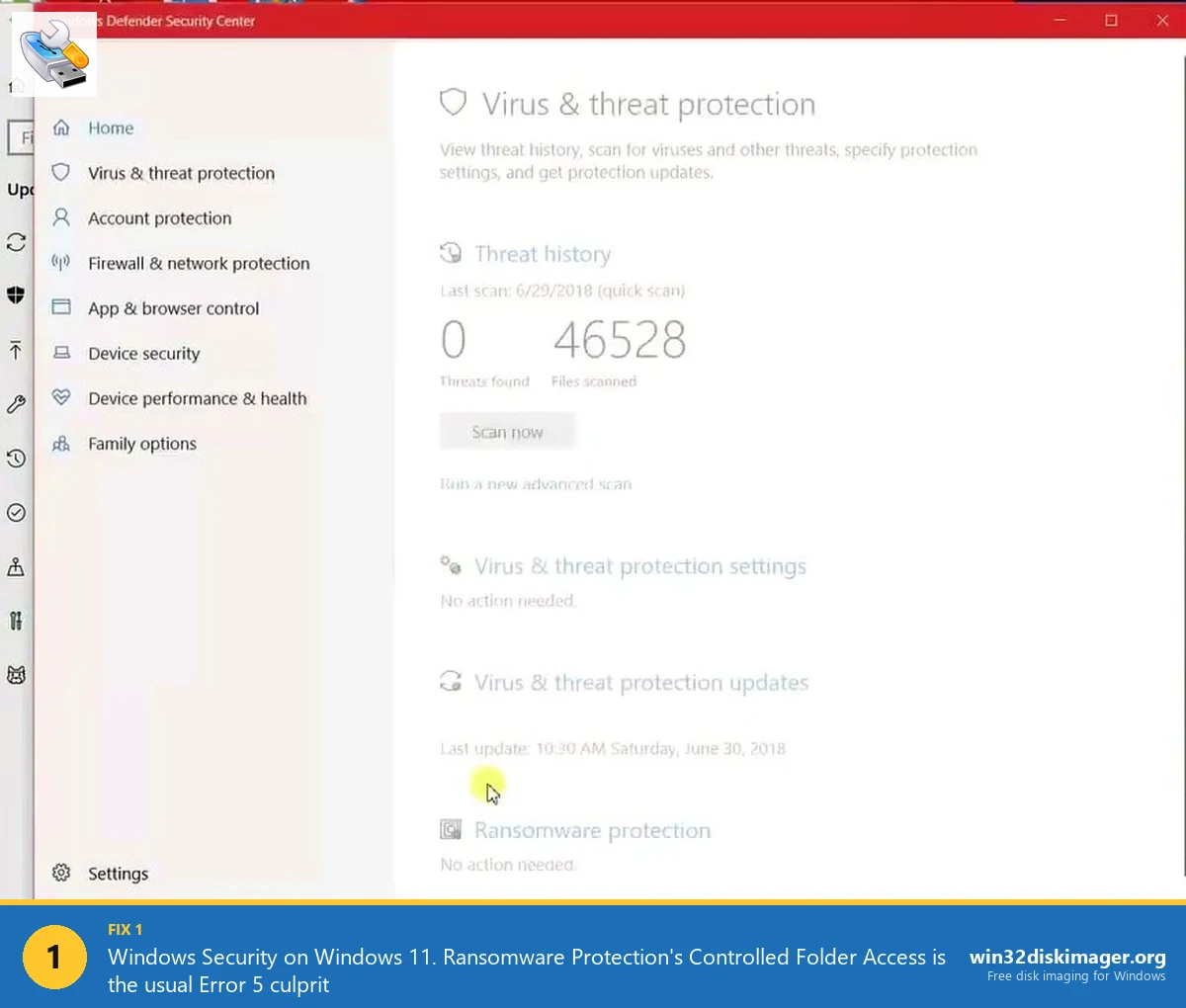
- Open Windows Security → Virus & threat protection → Manage settings → turn off Real-time protection (temporarily).
- Quit OneDrive from system tray (right-click → Settings → Pause syncing → 2 hours).
- Quit Google Drive, Dropbox, pCloud similarly.
- Close Photos, Lightroom, any photo-library app.
- Close any other disk tools (Rufus, Etcher, Pi Imager if open).
Now Cancel the stuck Win32DI operation, wait for it to actually cancel (up to 60 seconds), close the app, relaunch as admin, retry Write. Should proceed at normal speed.
Cause 2: Antivirus Mid-Scan Blocking I/O
Related but worth calling out specifically. When you insert a removable drive, Windows Defender (and most third-party AV) performs an automatic scan of the drive. Until that scan completes, the drive is under lock.
For a 32 GB freshly-inserted SD card with mixed file types, the scan can take 2-5 minutes. Win32 Disk Imager’s Write issues an I/O request that blocks for the entire scan duration.
Fix: let the scan complete before starting Write. Watch the File Explorer drive icon; when the “scanning” indicator (yellow caution triangle) disappears, scan is done.
Faster: temporarily disable real-time protection (Windows Security → Virus & threat protection → Manage settings), do the Write, re-enable. Add Win32 Disk Imager and the SD card’s drive letter to Defender’s exclusions to prevent this happening again.
Cause 3: SD Card with Bad Sectors
Failing SD cards with physically bad flash cells cause the Windows write driver to retry failed sector writes. Each retry takes a few hundred milliseconds. For a card with dozens of bad sectors, this can stall the apparent write progress.
Symptom: stuck at 0% for minutes, eventually moves slowly forward (maybe 1% per 30 seconds), or eventually throws a hardware error after extended delay.
Diagnose: try writing to a different, known-good SD card. If the new card writes at normal speed, the original card is failing.
Deeper test: run h2testw (free, heise.de/download/product/h2testw-50312) on the suspect card. Writes known patterns to every sector and reads back. Bad sectors show up as mismatches or write errors.
Fix: replace the SD card. Don’t try to recover the old one, it’s dying and any written data may corrupt later.
Cause 4: USB Reader or Port at Degraded Speed
USB 2.0 has a theoretical cap of 60 MB/s, real-world ~35 MB/s. USB 3.0 is 5-10x faster. If your USB 3.0 reader negotiates a 2.0 connection (bad cable, flaky port, reader issue), writes are dramatically slower.
Extreme case: a reader negotiating USB 1.1 (12 Mbps, ~1 MB/s) with a slow SD card can write at 0.1 MB/s, which Win32DI rounds to 0 on the MB/s counter. Progress appears stuck at 0% because each 1% takes 5+ minutes to complete on a 32 GB card.
Diagnose: Device Manager → Universal Serial Bus Controllers. Check which port/hub your reader is on. Right-click → Properties → Advanced. Should show USB 3.0/3.1/3.2. If USB 2.0 only, you’re on a slow port.
Alternatively, in File Explorer, right-click the SD card → Properties → Hardware tab. The reader’s bus type is often shown.
Fix: try a different USB port (on the motherboard, not the front-of-case USB which sometimes has degraded cables). Try a different USB reader if possible.
Cause 5: Win32 Disk Imager Internal Deadlock
Rare but documented. Win32 Disk Imager’s write thread can get into a deadlock if the initial device-enumeration query returned inconsistent results. Symptom: UI shows Write started, but the worker thread is waiting on a mutex that will never release.
Diagnose: Task Manager → Details tab → find DiskImager.exe → right-click → Analyze wait chain. If it shows waiting on a thread internal to the process, deadlock.
Fix: force-quit the app (Task Manager → End task). Close, relaunch as admin, redo device selection from scratch.
Preventive: always click Cancel on the previous operation before starting a new one. Don’t assume the previous one is “done” just because the progress bar was at 100%.
Cause 6: Corrupted Source IMG File
If the source IMG is corrupted (truncated download, bit-rot), Win32 Disk Imager starts the write but fails on the first read from the IMG and stalls waiting for valid data.
Diagnose: verify the IMG’s SHA256 hash against the publisher’s (see our hash verification guide). If mismatch, re-download.
Also check: the IMG file is readable. Open its properties in File Explorer. Size should match expected. Copy the file to a new location: if copy fails with an I/O error, the IMG is corrupted.
Fix: re-download the IMG from the original source, verify hash before flashing.
The Full Recovery Procedure
Step-by-step for resolving a stuck Write:
- Click Cancel in Win32 Disk Imager. It may take 30-60 seconds to actually respond.
- If Cancel doesn’t respond after 2 minutes, force-quit via Task Manager (End task on DiskImager.exe).
- Safely eject the SD card from Windows (right-click drive letter → Eject).
- Unplug the USB reader. Wait 10 seconds.
- Quit Google Drive, OneDrive, Dropbox, pCloud via system tray.
- Close any Photos app, Lightroom, or cloud-photo tools.
- Temporarily pause Windows Defender real-time protection.
- Plug the USB reader back in.
- Insert the SD card.
- Wait 20 seconds for Windows to fully enumerate and complete any auto-scan.
- Right-click Win32 Disk Imager → Run as administrator.
- Select Image File and Device as before.
- Click Write.
Should now proceed at normal speed (15-30 MB/s on USB 3.0). Re-enable Defender after write completes.
How to Tell If It’s “Really” Stuck vs Just Slow
Distinguishing genuine hang from slow-but-working:
Check Task Manager → Performance → Disk. Look for disk activity on the USB drive. If there’s any read/write happening, the operation is progressing (just slowly). If zero activity for 30+ seconds, it’s stuck.
Check the MB/s counter in Win32 Disk Imager. If it’s truly 0.000, stuck. If it’s 0.1-1 MB/s, just slow (maybe USB 2.0 + slow card). Let it finish; a 2.8 GB IMG at 0.5 MB/s takes 90 minutes.
Progress bar movement. If it moves even 1% in 2 minutes, it’s progressing. If zero movement in 5 minutes, stuck.
Patience vs force-quit: if there’s any disk activity at all, wait 10 minutes before giving up. Some USB 2.0 + slow SD combinations legitimately take an hour for a 4 GB image.
Windows Defender Specific Workaround
Because Defender is the most common blocker:
Permanent fix: add Win32 Disk Imager to Defender Exclusions.
- Windows Security → Virus & threat protection → Manage settings.
- Scroll to Exclusions → Add or remove exclusions.
- Add exclusion → Process → type
DiskImager.exe. - OK.
Now Defender won’t scan anything Win32DI is writing. Removes the scan-blocks-Write race condition.
Also consider excluding the drive letter range you use for removable media: Add exclusion → Folder → E:\. Defender won’t scan anything on E: drives.
Security note: exclusions are a tradeoff. Win32DI excluded = any malware masquerading as Win32DI also excluded. But for a trusted app you verified the download of, reasonable.
Common Stuck-at-X% Scenarios (Not 0%)
Related but slightly different: stuck at a non-zero percentage partway through.
Stuck at ~50%: often the boundary between partition 1 (boot) and partition 2 (root) in Pi OS images. Bad sectors at that exact spot on the SD card. Replace card.
Stuck at ~95%: end-of-drive bad sectors. Some cheap SD cards have weaker endurance in the last few GB. Try a smaller IMG or different card.
Stuck at exactly 25% or 75%: suspicious. These are filesystem-block boundaries for typical Pi OS images. Could indicate specific corruption patterns.
Stuck at varying percentages on retry: not sector-specific; probably USB flakiness. Try a different port or reader.
Performance Expectations for Reference
So you know what “normal” looks like vs “stuck”:
- USB 3.0 reader + A2 SD card: 30-45 MB/s write. A 2.8 GB Pi OS image flashes in ~75-90 seconds.
- USB 3.0 reader + A1 SD card: 20-30 MB/s. Pi OS in 100-140 seconds.
- USB 3.0 reader + cheap Class 10 SD: 10-20 MB/s. Pi OS in 140-280 seconds.
- USB 2.0 reader + any SD card: 20-30 MB/s cap due to USB. Pi OS in ~110-140 seconds.
- USB 1.1 (very rare in 2026): under 1 MB/s. Pi OS would take hours.
If your real-world speed is 50-70% of expected for your setup, you’ve probably got a Defender-scan interference. If it’s 10-20% of expected, likely a process holding a shared lock. If it’s 0-5%, genuine stuck.
When to Give Up and Try Different Tools
If stuck-at-0% happens consistently on multiple SD cards with different readers on your PC, the issue is likely software environment, not hardware. Try a different tool:
- Rufus: different write implementation. Often succeeds where Win32DI stalls.
- balenaEtcher: Electron app, completely different code path. Good alternative.
- Pi Imager: for Raspberry Pi specifically.
- USBImager: minimalist option.
If all four stall, the problem is definitely your system (Defender, drive locks, driver issue). If one works, use that one.
Case Study: The OneDrive Stall
Real example from my friend’s desktop. Setup: Windows 11 24H2, OneDrive with Files On-Demand, plenty of free space. Every time he tried to flash a Pi OS image to a 32 GB SanDisk, Win32 Disk Imager stuck at 0% for 5-10 minutes before slowly starting to progress at 2 MB/s. Should have been 25 MB/s.
Diagnosis: Task Manager → Disk showed OneDrive syncing ~80 MB/s worth of data from somewhere during the Win32DI write. OneDrive was indexing/syncing his Documents folder in response to a filesystem change (probably OneDrive noticed Win32DI opened an IMG file and tried to scan it).
Fix: pause OneDrive from tray (right-click icon → Pause syncing → 2 hours). Win32DI write immediately shot up to 28 MB/s. Entire flash completed in 2 minutes.
Preventive: he added a Windows Task Scheduler rule to pause OneDrive for 30 minutes when DiskImager.exe launches, resume when it closes. Elegant solution.
Preventive Habits
To avoid stuck writes entirely:
- Always launch Win32 Disk Imager as admin (Compatibility → Run as administrator permanently).
- Always exclude DiskImager.exe in Defender.
- Pause cloud sync apps before starting a Write.
- Use a dedicated USB 3.0 card reader plugged directly into the motherboard.
- Use reputable SD cards (SanDisk, Samsung, Kingston); avoid Amazon bargain cards.
- Verify IMG SHA256 before flashing.
- Eject the card from File Explorer after each use so the next insert starts fresh.
FAQ
How long should I wait before deciding Write is stuck?
5 minutes with zero progress = stuck. 2 minutes with tiny but measurable progress = just slow, let it finish. If it’s moving at any detectable rate, the write will complete eventually.
Will canceling a stuck Write corrupt my SD card?
The SD card is already partial-written if any data has been committed. Canceling leaves it in a half-flashed state. The card needs to be fully re-flashed to be usable. Canceling is safe for the card, it just means you have to redo the flash.
Why does Cancel take so long to respond?
Because the write I/O is stuck in a kernel-level lock. The Cancel button sets a flag, but the app can’t proceed until Windows releases the stuck I/O request, which can take 30-60 seconds. Force-quit via Task Manager is an alternative (but may leave the SD card in a weirder state).
Can a stuck Write damage my hardware?
No. Reading/writing a USB or SD is part of normal operation; it can’t damage hardware by being stuck. Force-quitting is safe hardware-wise.
Does this happen more on USB hubs?
Yes. USB hubs add enumeration latency and can introduce driver conflicts. Plug the card reader directly into the PC’s motherboard USB port for imaging work.
Does the SD card’s speed class matter?
Not for stuck-at-0%, but for overall write speed. Class 10 cards (10 MB/s minimum) are acceptable. A1/A2 rated cards are faster. Avoid Class 2/4/6 which are slow and often unreliable.
What if the stall happens during Read (backup), not Write?
Same causes (drive locks, reader speed, bad sectors). Same fixes. Try the full recovery procedure above but substitute “Read” for “Write” everywhere.
Is it safe to write while the SD card is still being indexed by Windows Search?
Not ideal. Search indexing holds a read lock that can conflict with Win32DI’s write. Wait for indexing to finish (check File Explorer for the “indexing” label), or disable indexing for removable drives (Control Panel → Indexing Options → Modify).
Does Sleep/Hibernate affect stuck Writes?
Yes. If your PC enters sleep mid-Write, the resume is messy, sometimes the Write continues, sometimes it’s corrupted. Disable sleep during imaging: Settings → System → Power → Sleep → Never.
Can I see what’s blocking the Write via Resource Monitor?
Yes. Ctrl+Shift+Esc → Performance tab → Open Resource Monitor → Disk tab. Look for DiskImager.exe’s Wait state and what file it’s waiting on. Often shows the exact culprit (Defender, OneDrive, etc.).
Does the stuck-at-0% bug affect Linux dd too?
Rarely. Linux dd to /dev/sdX bypasses most of the Windows-specific issues (Defender, OneDrive). Stuck Writes on Linux usually indicate genuine hardware failure. If Win32DI stalls and Linux dd works on the same hardware, the issue is Windows environment.
How can I prevent this from happening in future writes?
Set up the preventive habits listed above: admin mode permanent, Defender exclusion, pause cloud sync, good reader, reliable cards. Ten minutes of setup saves hours of troubleshooting later.
Wrapping Up
Stuck-at-0% in Win32 Disk Imager is almost always environmental, Defender mid-scan, Google Drive interfering, cloud sync locking the drive. The full recovery procedure (cancel, quit apps, unplug reader, replug, relaunch) fixes 85% of cases. For the remaining 15%, hardware issues like bad sectors or failing readers, replacement is the answer. See the Error 5 guide and the Device Detection guide for related Win32 Disk Imager troubleshooting.
Related Guides
Pair this guide with the rest of the Win32 Disk Imager knowledge base. These cover the adjacent workflows you’ll hit when working with disk images, bootable USBs, and Windows partition management.
- Win32 Disk Imager Error 5: Access Is Denied — 9 Working Fixes — The full troubleshooting tree for Error 5 on Win 10/11 — Controlled Folder Access, antivirus conflicts, SD lock switches, Safe Mode, and Group Policy.
- Win32 Disk Imager Not Detecting USB / SD Card — Fix Guide — Empty Device dropdown fixes — full reset sequence, Virtual Disk Service restart, driver updates, and the Google Drive/OneDrive interference trap.
- How to Use Win32 Disk Imager — Complete Beginner Guide — The full reference for the Win32 Disk Imager tool itself — install, UI walkthrough, and common workflows.
- Win32 Disk Imager: Not Enough Space on Disk — Causes + Fixes — Why your 32 GB IMG won’t fit on your 32 GB SD card — PiShrink, SD card size variance, counterfeit detection, and the Read destination-space trick.