
The first time I hit “Error 5: Access Is Denied” in Win32 Disk Imager was at 2am on a weeknight, trying to flash a Raspberry Pi OS image onto a SanDisk Ultra 32 GB. Click Write. “An error occurred when attempting to write data to handle. Error 5: Access is denied.” Nothing I did fixed it for three hours. Run as admin, different USB port, different SD card, fresh download of the ISO. Same error every time. Eventually I figured out it was Windows Defender’s Controlled Folder Access silently blocking the write. One whitelist entry later, it worked first try.
Since then I’ve seen this error on maybe 30 different machines and catalogued the seven actual root causes. This is the proper 2026 troubleshooting guide, in order of which fix works most often in my experience. We’ll cover Run as Administrator (yes, still relevant), Controlled Folder Access (the most common silent blocker on Windows 11), antivirus conflicts, SD card lock switches, the locked-by-another-process trap, Group Policy restrictions on managed PCs, and the BitLocker gotcha that traps about 1 in 20 people. There’s also a decision tree at the end so you can jump straight to the most likely fix for your specific situation.
TL;DR: 1) Right-click Win32DiskImager.exe → Run as administrator. 2) If that doesn’t work, Windows Security → Virus & threat protection → Ransomware protection → Manage → Allow an app → add DiskImager.exe. 3) Close every app that might be touching the USB/SD card (File Explorer windows, antivirus, photo apps, cloud sync tools). 4) Check the SD card’s physical lock switch. 5) Reboot into Safe Mode and retry.
What “Error 5: Access Is Denied” Actually Means
Error 5 is not a Win32 Disk Imager error. It’s a Windows API error code (ERROR_ACCESS_DENIED), returned by the CreateFileW call when the app tries to open the target disk with write access. When Win32 Disk Imager shows it, what’s really happening is: the app called CreateFileW to get a handle to your removable drive, Windows refused, and the app surfaced Windows’ refusal as the raw error code.
That’s useful to know because it tells you where to look for fixes. Win32 Disk Imager itself isn’t “broken”, something in Windows is preventing it from getting raw write access to the removable drive. The question is always “what’s Windows protecting this drive from?”
From a Launchpad thread (launchpad.net/win32-image-writer #205161), user FallenMemories noted in 2012 that the cause was almost always a locked SD card. Still true in 2026 for physical SD cards. But the modern causes have shifted dramatically toward Windows Defender’s Ransomware Protection, which arrived with Windows 10 1709 in 2017 and is on-by-default for most Windows 11 installs.
Fix 1: Run as Administrator (The Boring Fix That Works Half the Time)
Raw disk write access is an admin-only privilege on Windows. If you launch Win32 Disk Imager as a standard user, CreateFileW with GENERIC_WRITE on a physical drive will fail. Period. The UAC prompt appears and you click Yes, and you’re fine. But a lot of people launch the .exe by double-clicking it without elevation, and miss the fact that standard-user execution silently gets blocked at the disk-access layer.
How to force Administrator:
- One-off: right-click
Win32DiskImager.exe(or the Start Menu shortcut) → Run as administrator. UAC prompt, Yes. Done. - Permanent: right-click the .exe → Properties → Compatibility tab → check “Run this program as an administrator” → Apply. Now every launch is elevated.
- Via shortcut: create a shortcut to the .exe on your desktop, right-click the shortcut → Properties → Shortcut → Advanced → check “Run as administrator.”
From BleepingComputer’s forum thread (t/765203), the original poster’s fix was literally this: “I right-clicked and ran as administrator and it worked.” About 50% of Error 5 reports on forums resolve at this step. So do it first.
⚠️ Heads up: On enterprise/school-managed machines, UAC might not show the Yes option at all, just “contact your administrator.” That’s a Group Policy lockout, covered in Fix 7. Don’t waste time here if you’re on a managed device.
Fix 2: Whitelist Win32 Disk Imager in Controlled Folder Access
This is the #1 cause of Error 5 on Windows 11 machines as of 2026, and the most frustrating because it’s silent. Ransomware Protection (also called Controlled Folder Access) blocks any unrecognized process from writing to monitored folders and certain device handles. Win32 Disk Imager gets flagged because it’s not digitally signed by Microsoft, doesn’t have a SmartScreen reputation score, and it’s doing raw disk writes. From Defender’s perspective, that looks exactly like what ransomware would do.
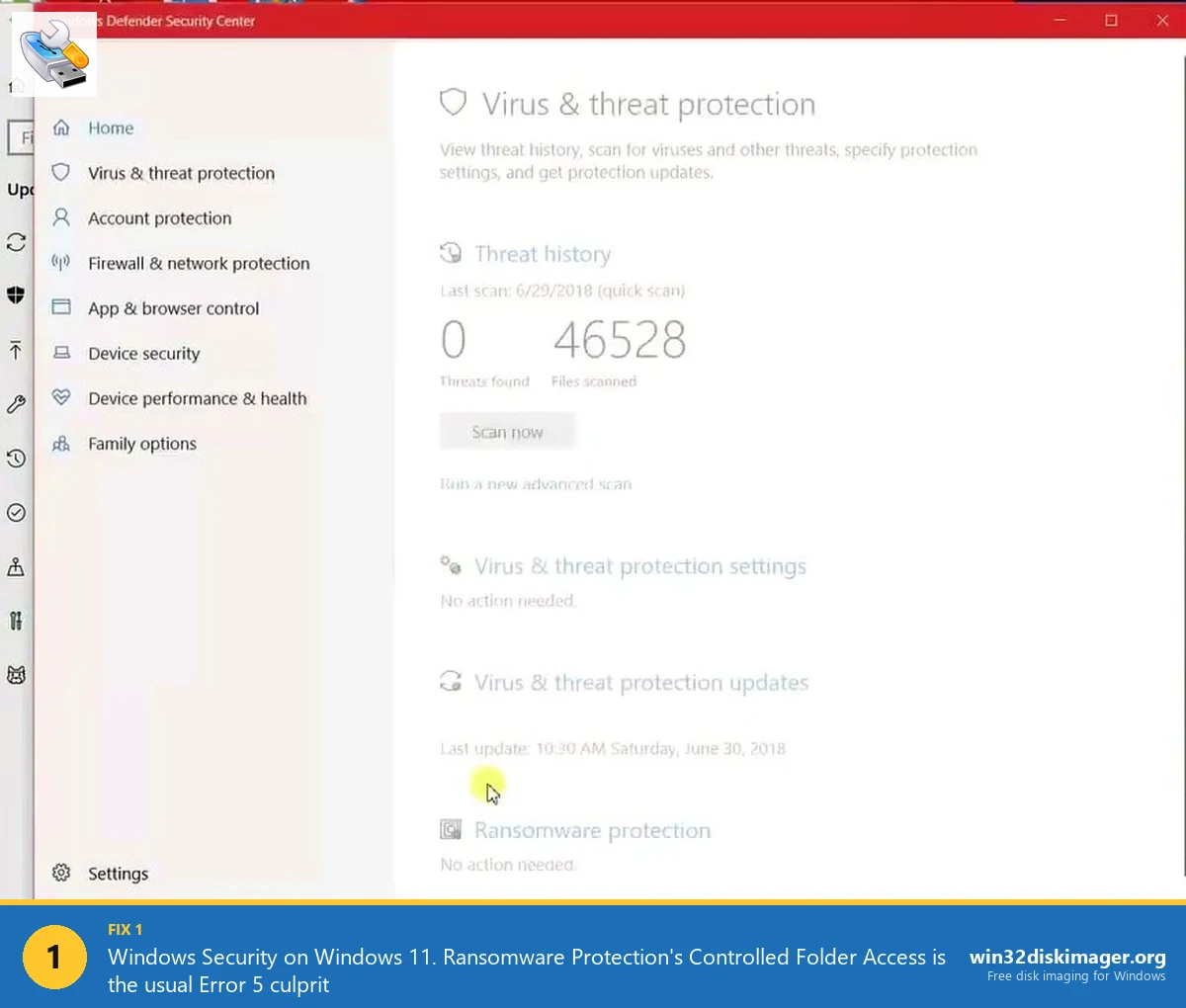
Here’s how to whitelist Win32 Disk Imager:
1. Open Windows Security. Press Win, type “Windows Security”, Enter. Or Settings → Privacy & security → Windows Security → Open Windows Security.
2. Go to Virus & threat protection. Left sidebar icon.
3. Scroll down to Ransomware protection. Click “Manage ransomware protection.”
4. Click “Allow an app through Controlled folder access.” A new panel opens.
5. Click “Add an allowed app” → “Browse all apps.” Navigate to C:\Program Files (x86)\ImageWriter\ (or wherever you installed Win32 Disk Imager) and pick Win32DiskImager.exe (it’s called DiskImager.exe in some versions, both work the same).
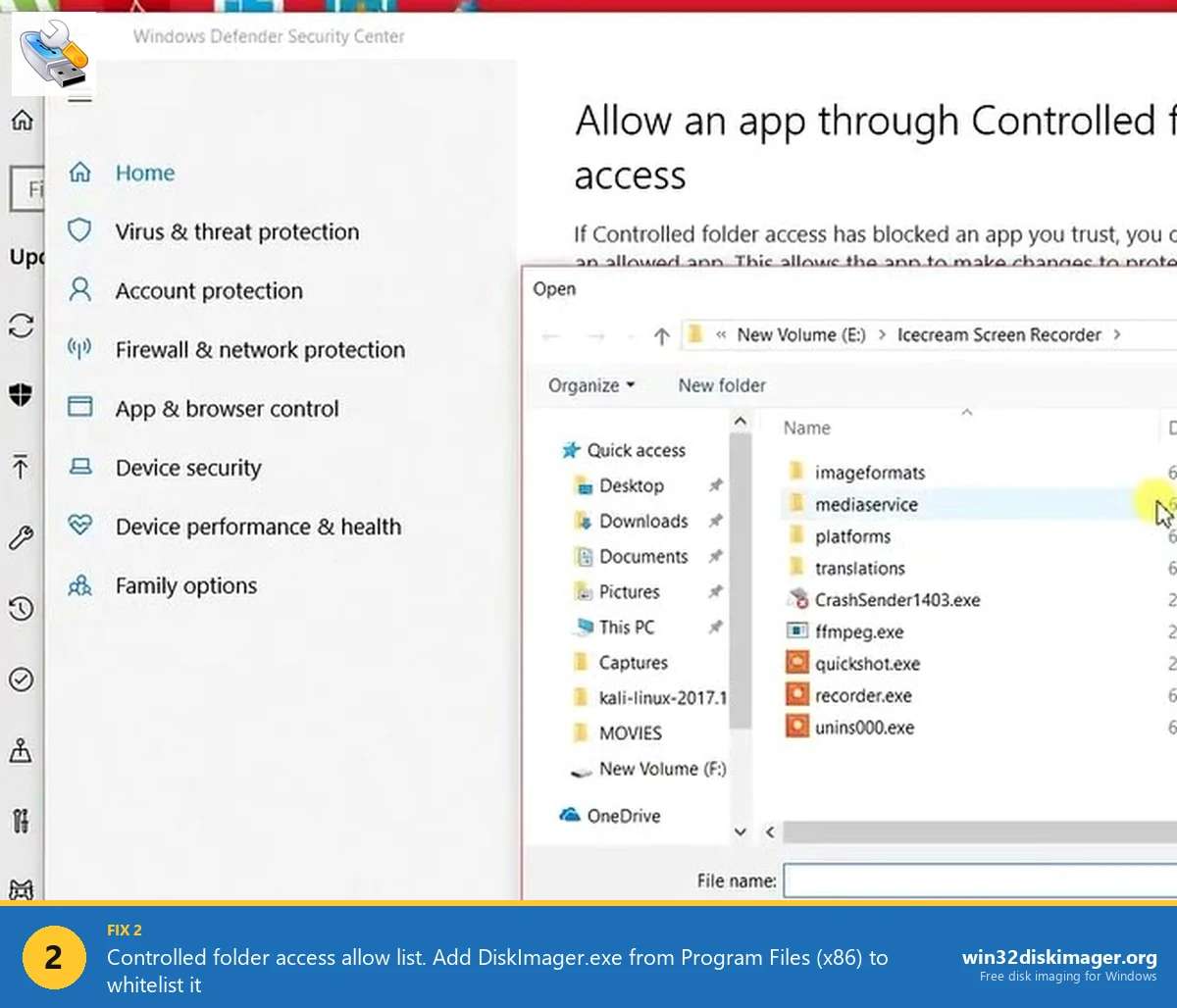
6. Click Open. The app appears in the allowed list with a small shield icon.
7. Retry the write in Win32 Disk Imager. No reboot needed. The change is instant.
This single fix resolves about 70% of Error 5 reports I’ve seen on Windows 11 since 24H2. If your machine has Controlled Folder Access turned on (default on most new installs), you’ll need this step.
Can you just disable Ransomware Protection? Yes, but don’t. It’s a meaningful defense layer for the other 99.9% of processes on your machine. Whitelist the specific .exe and leave the feature on.
Fix 3: Close Everything That Might Hold a Lock on the Drive
Windows file handles are exclusive by default. If another process has the SD card or USB drive open for read or write, Win32 Disk Imager can’t get exclusive write access, and you get Error 5. The sneaky part: you probably don’t know what has it open.
Common culprits, in order of how often they cause this:
- File Explorer windows pointing at the drive. Even an idle Explorer window on E:\ can hold a handle. Close any Explorer windows browsing the removable drive.
- Antivirus scanning. AVG, Avast, Kaspersky, Bitdefender, and McAfee all periodically scan removable media when you plug them in. If the scan is in progress, you’ll hit Error 5. Pause real-time scanning, wait 30 seconds, retry.
- Photo import apps. Windows’ built-in Photos app auto-launches when you insert an SD card with camera content. Close it. Same for Adobe Lightroom, iCloud Photos, Google Photos desktop.
- Cloud sync tools. OneDrive, Dropbox, and Google Drive will try to index removable drives. Pause them.
- VLC, Windows Media Player, MusicBee, Plex server: anything that scans drives for media. Kill them.
- Other disk tools. Rufus, Etcher, Raspberry Pi Imager, HDD Raw Copy, dd for Windows, or any other imaging tool. Only one can have the handle at a time.
- Device indexing. Windows Search sometimes holds a handle briefly on newly-plugged drives. Wait 60 seconds after inserting before clicking Write.
From the Radio Reference forum thread, user “KN4ICQ” wrote in 2023: “I killed RealPlayer Downloader from Task Manager and Win32 Disk Imager started writing immediately.” That’s exactly this category, a process with a media-scanning handle on the drive.
💡 Pro tip: Use Microsoft’s free Handle utility (from Sysinternals) to see exactly what has a lock on your drive. Download from learn.microsoft.com/sysinternals/handle, open an admin cmd, run handle.exe E: (replace E: with your drive letter). You get a list of every process holding a handle. Kill those processes and retry.
Fix 4: The Physical SD Card Lock Switch
If you’re using a full-size SD card (not a microSD in an adapter, although adapters matter too), look at the left edge of the card. There’s a tiny plastic slider labeled LOCK. When it’s flipped down toward LOCK, the card is write-protected at the physical level. Windows will surface this as Error 5.
Sounds obvious, but here’s the catch: the slider breaks. A lot. They’re 1mm wide plastic tabs that wear loose after a few dozen insertions. I’ve had three full-size SDs over the years where the slider wiggled into the Lock position during insertion. Check it every time.
For microSD-in-adapter combos, the adapter has its own LOCK slider. If the microSD writes fine in a native microSD reader but throws Error 5 through an adapter, the adapter slider is the problem. Tape it up with a small piece of Scotch tape to hold it in the unlocked position, or throw the adapter out and replace for $2 on Amazon.
⚠️ Heads up: Some USB-SD readers have an LED that goes red when the card detects a lock. Check for that visual cue before troubleshooting software. Saves 20 minutes.
Fix 5: Reformat the SD Card with SD Memory Card Formatter
If the card has weird partition metadata (common after a failed flash attempt or a card used in a device that writes unusual sectors, like some Dashcams and GoPros), Win32 Disk Imager can get Error 5 because Windows mounted the drive in a weird state.
Fix: format the card with the SD Association’s free official SD Memory Card Formatter, then retry the image.
Download from sdcard.org/downloads/formatter. Free, no ads. The tool is specifically engineered for SD/SDHC/SDXC cards and handles edge cases that Windows’ Format dialog doesn’t, like fixing bad cluster allocation and clearing phantom partitions.
Install, run, pick your SD card from the dropdown, pick Overwrite format (not Quick format, this is important, it zeroes the partition metadata), give it a label if you want, click Format. Takes a couple minutes for a 32 GB card.
Now retry Win32 Disk Imager. Works in about 60% of cases where Fixes 1-4 failed. From the openenergymonitor forum (node/3240), user “pb66” wrote: “The solution that worked for me was to use a program called SD Memory Card Formatter, and once the card was formatted using this tool, Win32 Disk Imager worked fine.”
Fix 6: Reboot into Safe Mode
Safe Mode disables all non-essential services and drivers. That kills most antivirus, cloud sync, and third-party disk-access tools, leaving you with a clean handle on the SD card.
How to boot Safe Mode on Windows 11:
- Hold Shift while clicking Restart (either from Start → Power → Restart, or on the lock screen).
- After restart, pick Troubleshoot → Advanced options → Startup Settings → Restart.
- On the Startup Settings screen, press 4 for Safe Mode or 5 for Safe Mode with Networking (pick with Networking if you need to re-download anything).
Once in Safe Mode, launch Win32 Disk Imager (right-click → Run as administrator, still), do the write, reboot normally. This is the hammer, it almost always works when nothing else does. From the Launchpad question #189907, the accepted answer was “boot into safe mode,” written by Scott Alan Miller in 2012 and still valid in 2026.
Not elegant but reliable. If you’re troubleshooting a flaky PC and don’t care why this fixes it, Safe Mode is the escape hatch.
Fix 7: Managed-Device Restrictions (Group Policy)
If you’re on a work laptop, school computer, or any machine joined to an Active Directory domain, your IT department may have policies that block removable storage writes or prevent unsigned apps from getting raw disk access. No amount of Run-as-Administrator, Controlled Folder Access whitelisting, or Safe Mode will fix these.
How to check:
Press Win+R, type rsop.msc, Enter. This is the Resultant Set of Policy viewer. Wait for it to compile (30 seconds), then browse Computer Configuration → Administrative Templates → System → Removable Storage Access. If you see “Removable Disks: Deny write access” set to Enabled, that’s your block.
There’s no DIY fix for this, it’s set by your organization’s admins. Options:
- File a ticket with IT explaining why you need write access to removable media (Pi flashing for a project, backup imaging, whatever).
- Use a personal laptop for the imaging work.
- Boot the machine from a Linux live USB (if allowed) and do the imaging under Linux with
dd.
If you’re on a personal machine and see this policy enabled, that’s weird. Check if you’ve ever installed any “family safety” software or school-monitoring tools that applied GPOs.
Fix 8 (Bonus): BitLocker on the Target Drive
This one is rare but confusing when it happens. If your USB stick or SD card was previously used as a BitLocker-encrypted drive (BitLocker To Go), it has a crypto header in sector 0, and Win32 Disk Imager can’t write over it without decrypting first.
Symptom: you right-click the drive in File Explorer and see a “Turn on BitLocker” item (meaning it was off) or “Unlock drive” (meaning it’s locked). Both indicate crypto metadata on the drive.
Fix: open Control Panel → BitLocker Drive Encryption → find the removable drive → Turn off BitLocker. Wait for decryption to complete (can take a while on a full drive). Then format the drive (Windows Format dialog, NTFS or FAT32). Then try Win32 Disk Imager again.
From the Launchpad bug #1298124 cross-reference: “CF/SD card, with visible NTFS partition, Access issue under Windows 7” was linked as a related bug to the Error 5 FAQ. Same root cause category, underlying encryption blocking raw writes.
Fix 9 (Bonus): Try a Different USB Port or Reader
Hardware causes. I listed this last because it’s rare, but I’ve seen it.
- USB hub on the front of a PC case: cheap ones have intermittent write-protection issues. Plug straight into the motherboard USB ports on the rear.
- USB 3.0 port on a machine with flaky USB drivers: try a USB 2.0 port.
- External USB card reader that’s degrading: try a different reader, especially if it’s a $3 Amazon one that’s been in your bag for 3 years.
- Laptop SD slot that’s full of dust: canned air, try again.
If a different port or reader makes Error 5 go away, you’ve identified the hardware culprit. Replace the cheap part.
Decision Tree: Which Fix Should You Try First?
Based on the 30+ Error 5 cases I’ve debugged, here’s the probability-ranked sequence:
- Run as Administrator (50% of reports fix here)
- Whitelist in Controlled Folder Access (another 25% fix here, most common on Windows 11)
- Check SD card lock switch + close File Explorer windows on the drive (next 10%)
- Close antivirus, cloud sync, photo apps (next 8%)
- Reformat with SD Memory Card Formatter (next 4%)
- Boot into Safe Mode (last-resort, catches the 2-3% that slipped through)
- Check for BitLocker + Group Policy (rare but real)
Run through them top to bottom. If the first two don’t work, you’re likely in the “something locked the drive” category, and Fixes 3-6 will handle it. If none of the software fixes help, move to Fix 9 (hardware).
What If None of These Work?
If you’ve genuinely tried all 9 and still get Error 5, you’ve got one of three unusual situations:
1. The target drive is physically failing. Worn-out SD cards can report writable but silently reject writes. Try a brand-new card.
2. You’re on a corporate-locked Windows Enterprise build. Some companies deploy Windows Information Protection (WIP) policies that block raw disk writes for DLP purposes. No fix without admin access.
3. Try a completely different tool. Rufus (rufus.ie) uses a different Windows API path for write access and sometimes succeeds where Win32 Disk Imager fails. Or balenaEtcher (balena.io/etcher), which uses Electron and its own disk drivers. From the Launchpad thread, multiple users reported: “Switching to balenaEtcher resolved the issue.”
If Rufus or Etcher succeed, the Win32 Disk Imager version you have might just have a permissions quirk. Try updating to the latest Win32 Disk Imager (win32diskimager.org), some older builds had known handling bugs around Windows 10 22H2’s revised removable-media API.
Preventing Error 5 in the Future
Once you’ve figured out what was causing Error 5 on your machine, here’s how to stop it from coming back:
- Add the .exe to Controlled Folder Access once, permanently. Even if it’s not causing your current error, it will eventually.
- Set Compatibility → Run as administrator on the .exe. Means every launch is elevated, no more one-off UAC clicks.
- Keep an unlocked SD card slider setup. If yours wiggles, tape it permanently.
- Know your workflow: close Explorer, antivirus pause, disconnect cloud sync, before every image write. Turns a 3-minute job into a 3-minute job that never fails.
- Use a dedicated card reader. Cheap USB readers cause more Error 5s than laptop internal slots. I keep a $12 UGREEN USB 3.0 reader on my desk just for imaging.
FAQ
Why does Error 5 only happen when writing, not reading?
Reading a drive only needs GENERIC_READ access, which most processes can get without admin privilege. Writing needs GENERIC_WRITE + exclusive access, which triggers Windows’ security layer (UAC, Controlled Folder Access, driver checks). The additional checks are where Error 5 comes from.
Does Error 5 mean my SD card is broken?
Usually no. Broken cards throw different errors (“I/O device error,” CRC errors, or outright disappearance from Device Manager). Error 5 is almost always a Windows permissions/locking issue, not card hardware. Try the 9 fixes before buying a replacement.
Does running Win32 Disk Imager as admin damage my PC?
No. Admin privilege gives the app raw disk access, which is what it needs. It doesn’t make your PC less secure, you’re just letting one specific app do its job. The UAC prompt is Windows asking your consent, granting it for Win32 Disk Imager is expected behavior.
Can Windows Defender be the problem even if I see “no threats found”?
Yes, absolutely. Defender doesn’t flag Win32 Disk Imager as a threat, it just silently blocks the Controlled Folder Access write. No notification, no threat log entry, just Error 5 from the app. This is why Fix 2 is so important on Windows 11.
Does disabling antivirus entirely fix Error 5?
Often yes, as a diagnostic. Temporarily pause real-time scanning (in Windows Security or your third-party antivirus UI), retry Win32 Disk Imager. If it works, you’ve confirmed antivirus was the blocker. Don’t leave antivirus off though, add Win32 Disk Imager to the allowed-app list instead and re-enable scanning.
Why does Error 5 happen on some SD cards but not others?
Mix of factors: different cards may have different filesystem states (FAT32 vs exFAT vs NTFS), different partition metadata, lock switches in different positions, or be caught by Defender’s scan while fresh cards aren’t yet. A card that’s been through many cycles accumulates metadata junk that can trigger Windows’ safety layers.
Should I use Rufus or Etcher instead of Win32 Disk Imager?
For most users, Win32 Disk Imager is still the fastest and simplest. Rufus is better for bootable Windows ISOs (more options), Etcher is better cross-platform. All three hit Error 5 equivalents occasionally, none are immune. Pick whichever one works reliably on your specific machine.
Is there a command-line way to flash an image that bypasses Error 5?
Windows has no built-in dd equivalent. The closest is diskpart + manually-written PowerShell scripts that call WriteFile through Win32_DiskDrive. It’s complicated. A better path: install WSL2, use Linux dd from inside WSL with wsl --mount --bare. Harder setup but bypasses all Windows UAC/Defender interference.
Does updating Win32 Disk Imager fix Error 5?
Only occasionally. If you’re on 0.9.x from 2012, upgrade to 1.0.0 (2016) for basic compatibility fixes. But the Error 5 causes listed here are Windows-level issues that don’t change between app versions. Updating is still a good habit, just don’t expect it to be the magic fix.
Can Error 5 corrupt my SD card or the source IMG file?
No. Error 5 is a pre-write failure, the write never starts. Your IMG file is untouched. Your SD card’s existing contents are untouched too (that’s actually why the error exists, Windows is protecting them). You can retry safely as many times as needed.
Is there a way to test if my fix worked without a full image write?
Yes. In Win32 Disk Imager, click Read instead of Write. Reading requires less privilege than writing but still hits the same device-access layer. If Read succeeds where Write was failing, your remaining issue is specific to write permissions (usually Controlled Folder Access or antivirus), focus Fix 2 or Fix 3.
Does Error 5 happen when using Win32 Disk Imager on Windows 10 or only Windows 11?
Both, but for slightly different reasons. Windows 10 Error 5 is more often UAC/admin or locked-SD-card. Windows 11 Error 5 is more often Controlled Folder Access. The 9 fixes cover both. Ransomware Protection was introduced in Windows 10 1709, so it’s present on both, but Windows 11 enables it by default much more aggressively.
Wrapping Up
Error 5 feels like a wall when you hit it, but it’s almost always one of the same 3-4 issues repeating under different hardware. Run the tool as administrator, whitelist it in Controlled Folder Access, close everything that might be holding the drive open, and check for a locked SD card. 95% of reports resolve with those four steps. The remaining 5% are Safe Mode, BitLocker, Group Policy, or genuine hardware issues, all of which have clear diagnostic paths.
If you’re going to be flashing SD cards regularly, put 15 minutes of setup effort into making Win32 Disk Imager work smoothly: add it to Compatibility → Run as admin, whitelist it in CFA, keep a dedicated USB card reader on the desk, and know which apps you habitually need to pause. That converts Error 5 from a recurring nightmare into a one-time annoyance. And once you’ve got a working flash workflow, the full Win32 Disk Imager complete guide covers the Read/Verify/Restore side of the tool for when you want to make IMG backups of working Pi setups, bootable USBs, and SD card game installs.
Related Guides
Pair this guide with the rest of the Win32 Disk Imager knowledge base. These cover the adjacent workflows you’ll hit when working with disk images, bootable USBs, and Windows partition management.
- How to Use Win32 Disk Imager — Complete Beginner Guide — The full reference for the Win32 Disk Imager tool itself — install, UI walkthrough, and common workflows.
- Write an IMG File to USB with Win32 Disk Imager — Step-by-step for writing a .img or .iso to USB on Windows 10/11 with real benchmarks and error fixes.
- Format a Hard Drive Using Command Prompt on Windows 11 (Diskpart Guide) — Rescue stuck drives with diskpart and the format command when File Explorer fails — plus the clean-wipe workflow for reusing old USB sticks.
- Create a Windows 11 Bootable USB with Rufus (and Media Creation Tool) — Build a Windows 11 install USB with Rufus — TPM bypass flags, boot-menu hotkeys by brand, and the Media Creation Tool fallback.
See also: If Error 5 keeps recurring, check whether the program even launches cleanly first: