
Every few months someone asks me “what should I use instead of Win32 Disk Imager?” and my answer is always “it depends on what you’re trying to do.” There’s no single drop-in replacement. Win32 Disk Imager does a specific thing (raw Read/Write between IMG files and physical drives on Windows), and different alternative tools are better at different slices of that workflow. Rufus is better for bootable Windows installers. Pi Imager is better for first-time Raspberry Pi setups. Etcher is better for cross-platform. Ventoy is better for multi-boot. None of them are strictly better at everything.
I’ve tested all 10 tools on this list extensively. Some of them I use daily alongside Win32 Disk Imager, some I’ve stopped using because they have weird quirks or dead-ended development. This is my honest 2026 ranking of what each tool is actually good at, where it falls short, which users it’s aimed at, and specifically how it compares to Win32 Disk Imager. No affiliate links, no sponsor placements. If I think a tool is mid, I’ll say it’s mid.
TL;DR: Top 3 by use-case: Rufus for Windows installer USBs, balenaEtcher for cross-platform SD flashing, Raspberry Pi Imager for Pi OS setups. Plus: Ventoy for multi-boot, UNetbootin for Linux live USBs, USBImager for minimalism, USB Image Tool for simple backup, Clonezilla for full-disk cloning, EaseUS Todo Backup for Windows system backup, Acronis True Image for paid premium.
Quick Comparison Table
| Tool | Write IMG | Read drive to IMG | Platform | Size | Best For |
|---|---|---|---|---|---|
| Win32 Disk Imager | ✅ | ✅ | Win | 12 MB | Pi SD backup |
| Rufus | ✅ | ❌ | Win | 1.5 MB | Windows install USB |
| balenaEtcher | ✅ | ✅ (v2+) | Win/Mac/Linux | 125 MB | Cross-platform |
| Raspberry Pi Imager | ✅ | ❌ | Win/Mac/Linux | 30 MB | Pi OS first install |
| Ventoy | Multi-boot | ❌ | Win/Linux | 15 MB | Toolkit USB |
| UNetbootin | ✅ | ❌ | Win/Mac/Linux | 5 MB | Linux distro USBs |
| USBImager | ✅ | ✅ | Win/Mac/Linux | 600 KB | Minimalist alternative |
| USB Image Tool | ✅ | ✅ | Win | 2 MB | Simple Win32DI clone |
| Clonezilla | Full disk | Full disk | Linux Live | 300 MB ISO | Full PC backups |
| EaseUS Todo Backup | System backup | System backup | Win | 200 MB | Windows system images |
1. Rufus (Best for Windows Installer USBs)
Website: rufus.ie. Price: Free. Size: 1.5 MB portable .exe.
The de-facto standard for making Windows 10/11 install USBs. Its killer features are the Windows User Experience dialog (TPM/Secure Boot bypass, local account bypass, set regional defaults pre-install) and the built-in ISO downloader that grabs Microsoft’s latest ISOs directly.
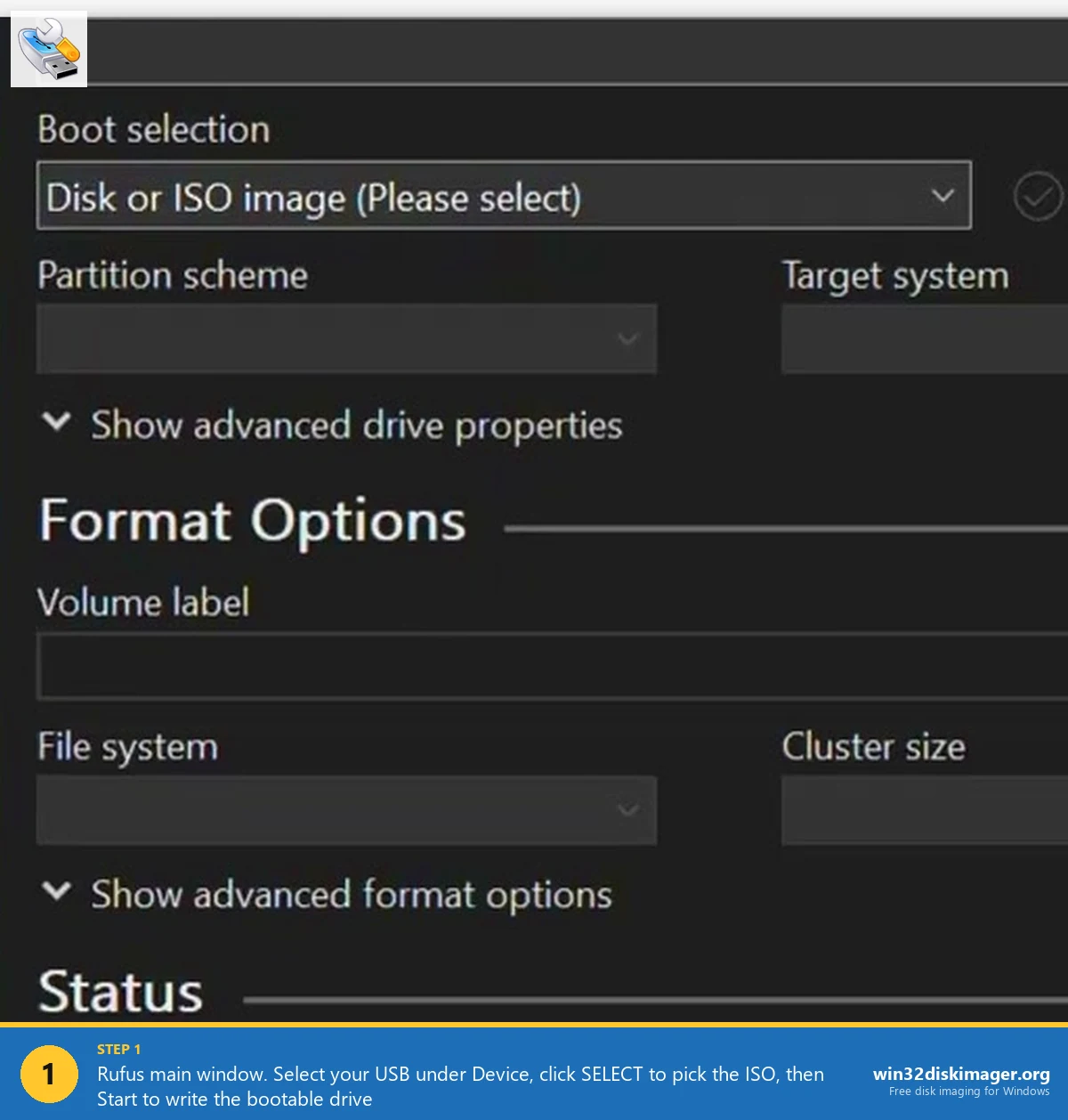
Compared to Win32 Disk Imager: Rufus handles the partition layout properly for dual-mode boot (UEFI + Legacy BIOS), which Win32DI doesn’t. It can also bypass TPM 2.0 and Secure Boot, crucial for installing Win 11 on older hardware. Win32DI just writes raw bytes; Rufus understands the ISO’s structure.
Missing: no Read from drive to IMG. For backup workflows, you still need Win32DI or Etcher’s Clone drive feature.
Full comparison in our Win32DI vs Rufus article.
2. balenaEtcher (Best Cross-Platform)
Website: balena.io/etcher. Price: Free. Size: 125 MB installer.
The polished cross-platform alternative. Slick wizard UI, auto-verify after every write, can flash multiple drives simultaneously (up to 5 at once), and as of v2 has Clone drive feature for Read-to-IMG backup.
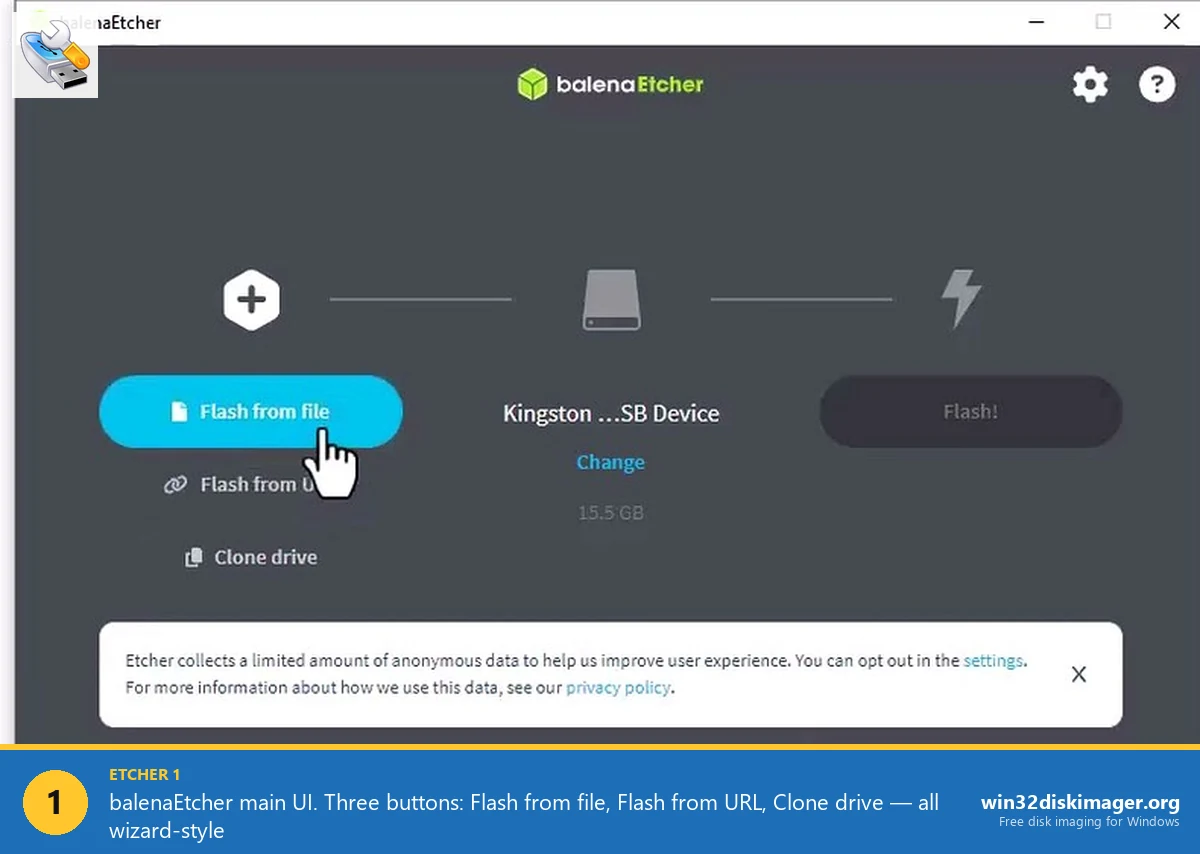
Compared to Win32 Disk Imager: Etcher wins if you use multiple OSes (Win + Mac + Linux). The auto-verify catches bad SD cards automatically without requiring a manual click. Multi-drive flash is genuinely unique. On Windows specifically, Win32DI is faster (smaller app) and has SHA hash generation which Etcher doesn’t.
Missing: no SHA256 hash output alongside IMG, 400 MB runtime memory footprint, no “Read Only Allocated Partitions” equivalent for compact backups.
Full comparison in our Win32DI vs balenaEtcher article.
3. Raspberry Pi Imager (Best for Pi OS)
Website: raspberrypi.com/software. Price: Free. Size: 30 MB installer.
Official Raspberry Pi Foundation tool. For Pi OS specifically, it’s the undisputed winner because of the pre-config screen: bake hostname, WiFi SSID + password, SSH keys, and locale into the image before write. First-boot headless setup is trivially easy.
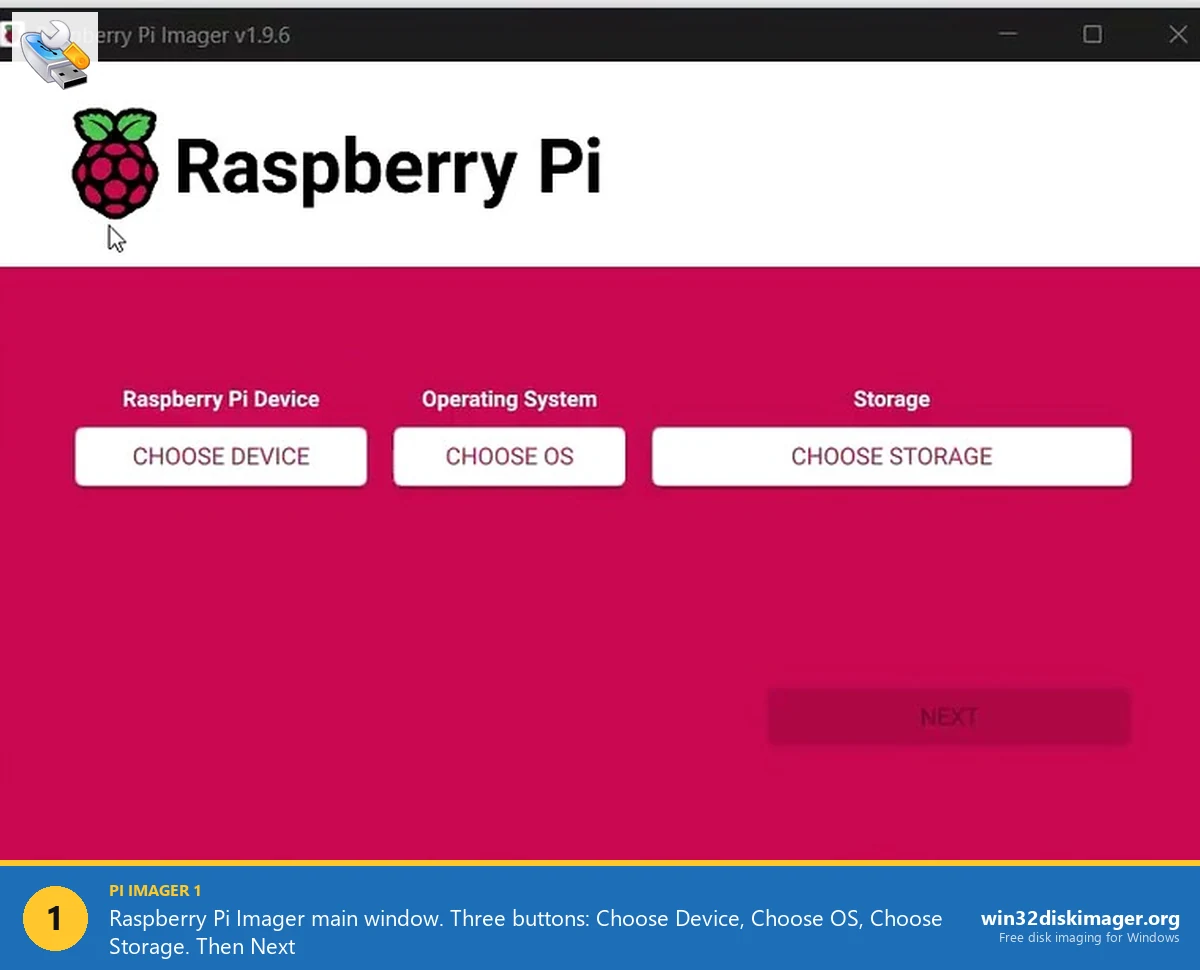
Compared to Win32 Disk Imager: Pi Imager wins for first-time Pi setups hands-down. The OS picker lists 60+ pre-configured options (RetroPie, OctoPi, Ubuntu, HomeAssistantOS). Streaming decompression saves bandwidth. Win32DI still wins for backup (Read to IMG) which Pi Imager can’t do.
Missing: No Read/backup mode. Wizard flow is slow if you’re experienced and flashing repeatedly.
Full comparison in our Win32DI vs Pi Imager article.
4. Ventoy (Best for Multi-Boot Toolkit USBs)
Website: ventoy.net. Price: Free. Size: 15 MB installer.
Completely different paradigm. You install Ventoy once to a USB stick, then drop as many ISO files on it as fit. When you boot from that USB, Ventoy shows a menu of every ISO, pick one, it boots directly. No re-flashing ever.
My “fix-anything” USB has Ventoy + 12 tools: Win 10, Win 11, Ubuntu, Linux Mint, Clonezilla, GParted Live, Memtest86, Hirens Boot CD, SystemRescue, Kali Linux live, and a few utility ISOs. One 64 GB stick, boots any of them.
Compared to Win32 Disk Imager: Different use case entirely. Ventoy isn’t for making single-purpose install USBs; it’s for making a personal IT-tech-toolkit USB. If you’re only ever flashing one thing at a time, Ventoy is overkill. If you carry a USB in your pocket/desk drawer, Ventoy is the tool.
Missing: No Read/backup. Some exotic ISOs have boot quirks in Ventoy.
5. UNetbootin (Best for Linux Distro USBs, Legacy)
Website: unetbootin.github.io. Price: Free. Size: 5 MB portable.
One of the oldest still-maintained bootable-USB tools (2007). Originally designed for Linux distro installation, it has a built-in catalog of Linux distros (Ubuntu, Fedora, Debian, Arch, etc.) that it can download and flash in one step. Similar to Pi Imager’s OS picker but for Linux distros instead of Pi OS.
Compared to Win32 Disk Imager: UNetbootin is specifically for making bootable Linux live/install USBs. Win32DI is a raw-writer. For Linux USBs, UNetbootin is the easier path, it handles syslinux and GRUB setup automatically. But in 2026, most people reach for Rufus or Etcher instead; UNetbootin feels dated.
Missing: Windows ISOs often don’t work right. UI hasn’t been updated since ~2015. Persistence features are flaky.
My honest take: use Rufus or Etcher instead. UNetbootin is fine but has nothing unique in 2026.
6. USBImager (Best Minimalist Alternative)
Website: bztsrc.gitlab.io/usbimager. Price: Free. Size: 600 KB.
The tiniest tool on this list. Single-file 600 KB executable (yes, kilobytes). Does the core Win32 Disk Imager job, Read from and Write to USB/SD, with a similar simple UI but even smaller footprint.
Cross-platform: Windows, macOS, Linux, BSD, even Haiku. Author is a single developer who cares about minimalism.
Compared to Win32 Disk Imager: 20x smaller install. Feature parity for Read/Write. Native on Mac/Linux where Win32DI doesn’t run. Slightly less polished UI. For Windows-only users, Win32DI has no real disadvantage; USBImager shines if you want a truly minimal portable tool or need cross-platform.
Missing: Obscure (small user base). Less documented. Some niche formats unsupported.
7. USB Image Tool (Closest Direct Clone of Win32DI)
Website: alexpage.de/usb-image-tool. Price: Free. Size: 2 MB portable.
Feature-for-feature similar to Win32 Disk Imager. Portable (no install), reads/writes USB and SD, shows progress bar. Profiles feature is nice, save device/image combinations as presets.
Compared to Win32 Disk Imager: If Win32DI annoys you in some specific way, USB Image Tool is the drop-in replacement to try. Similar enough that muscle memory transfers, different enough that quirks may differ. Profiles is the distinguishing feature.
Missing: No hash generation. No “Read Only Allocated Partitions” equivalent. Development pace is slow.
8. Clonezilla (Best for Full Disk Cloning)
Website: clonezilla.org. Price: Free. Size: 300 MB Live ISO.
Different category: Clonezilla is a Linux Live USB/CD that you boot from to clone an entire PC’s drive to another drive or image file. Not a flashing tool; a full-disk cloning tool. For migrating from an old SSD to a new one, backing up a complete Windows install, or mass-imaging a computer lab.
Compared to Win32 Disk Imager: Different scale. Win32DI is for small removable drives (USBs, SD cards, ~64 GB max practically). Clonezilla handles full SSDs (TB+), does smart incremental-only-used-blocks cloning, network deployment, multicast. Enterprise-class tool.
Missing: UI is Linux terminal menus, not beginner-friendly. No GUI on Windows. Runs only from boot media.
9. EaseUS Todo Backup Free (Best Windows System Backup)
Website: easeus.com/todo-backup. Price: Free tier, paid upgrades. Size: 200 MB.
For Windows system image backup with a polished GUI. Can back up the entire Windows install to a .pbd file (EaseUS’s proprietary format) or to a VHD/VMDK. Scheduler, incremental backups, differential backups, built-in recovery media maker.
Compared to Win32 Disk Imager: Different tool for different job. Win32DI makes byte-level IMG backups of removable drives. EaseUS makes Windows system snapshots. If you want to back up “my entire PC,” EaseUS (or Macrium Reflect Free, similar category). If you want to back up “my Pi’s SD card,” Win32DI.
Missing: Free tier is limited (aggressive upgrade nag-screens to paid version). Proprietary .pbd format locks you to their ecosystem.
10. Acronis True Image (Best Paid Option)
Website: acronis.com. Price: $50-100/year. Size: 300 MB.
Premium backup tool with clone, image, ransomware protection, cloud backup to Acronis servers. Professional feature set. Very polished.
Compared to Win32 Disk Imager: Totally different tier. Acronis is commercial enterprise software. Win32DI is a hobbyist tool. They don’t compete directly; you’d use Acronis for whole-PC backup and Win32DI for Pi SD imaging simultaneously without conflict.
Missing: Subscription pricing model some people hate. Cloud storage built in (some hate it, some love it). Installer is heavy.
Honorable Mentions
A few more tools worth knowing about but not in my top 10:
- Macrium Reflect Free (was free, went paid in 2024, still good if you have legacy license). Windows system imaging.
- HDD Raw Copy Tool. Ancient but still works. Tiny portable raw-copy tool. Windows XP-era UI but functional.
- dd on Linux/WSL. The original. Command-line, ultimate flexibility, requires knowing what you’re doing.
- Chrysocome dd for Windows (port of Linux dd). Command-line. Useful for scripting.
- AOMEI Backupper Standard. EaseUS competitor. Similar feature set, different UI.
- WoeUSB. Linux tool for making Windows installer USBs from Linux. Useful if your main machine is Linux.
Use-Case Decision Tree
Pick by what you’re actually doing:
“I need to install Windows 11 from a USB” → Rufus, possibly Etcher or Microsoft’s Media Creation Tool.
“I need to flash Raspberry Pi OS to SD” → Raspberry Pi Imager or Win32 Disk Imager.
“I need to back up a working Pi SD to IMG” → Win32 Disk Imager (the winner for this specific job).
“I want one USB stick with 10 different OSes on it” → Ventoy.
“I’m on Mac or Linux primarily” → balenaEtcher (or native dd).
“I want the absolute smallest/simplest tool” → USBImager (600 KB).
“I need to clone my entire Windows PC” → EaseUS Todo Backup, Macrium Reflect, or Clonezilla.
“I want a Linux live USB with persistence” → Rufus (has persistence option) or Ventoy.
“I want paid enterprise-grade backup with cloud” → Acronis True Image.
Why Win32 Disk Imager Is Still Relevant
If you’ve read this far and wondered why I’m writing about Win32 Disk Imager alternatives on a Win32 Disk Imager site, fair question. The honest answer: Win32 Disk Imager doesn’t do everything well, and pointing people at better tools for specific jobs is more useful than pretending it’s the best at everything.
But Win32 Disk Imager wins definitively at:
- Backing up working SD cards to IMG files. With “Read Only Allocated Partitions,” the IMGs are compact. SHA256 hash generation for archival verification. No other free tool matches this combo.
- Minimal footprint on Windows. 12 MB install, 30 MB RAM. Etcher’s 125/400 is huge. Rufus doesn’t Read.
- Simplicity for non-beginners. Once you know the 6-button UI, it’s the fastest tool to use for repeated flashes.
- Works offline. Zero internet required. No telemetry.
- Windows 7 / 8 compatibility. Most modern alternatives dropped Win 7 support. Win32DI still works on legacy PCs.
For everything else, one of the 10 alternatives above is probably better. Install the ones that match your workflow. They don’t conflict with Win32 Disk Imager.
What I Actually Have Installed
Full disclosure of my 2026 imaging setup:
- Win32 Disk Imager: for SD card backup/restore workflow.
- Rufus (portable on Desktop): for Windows installer USBs.
- Raspberry Pi Imager: for first-time Pi OS setups.
- balenaEtcher: for when my wife needs to flash something on her MacBook.
- Ventoy: installed once on a dedicated 64 GB USB in my desk drawer with 12 bootable tools on it.
That’s five tools. They collectively weigh ~200 MB on disk. They cover every imaging scenario I’ve encountered. No overlap complaints, no conflicts.
FAQ
What’s the single best alternative if I could only install one?
Rufus. Covers the widest range of use cases: Windows installers, Linux live USBs, Pi images (raw mode), ISO downloads, TPM bypass. If you’re only ever going to have one imaging tool, Rufus is it. You lose Win32 Disk Imager’s Read/backup capability though.
Which alternative is fastest?
Rufus, marginally. On USB 3.0 hardware, Rufus and Win32 Disk Imager write at similar speeds, but Rufus’ DD mode for Windows ISOs is ~15% faster than Win32DI’s raw write because it optimizes for the target partition layout.
Which is the safest / most trusted?
All of the free ones have been around 10+ years with active communities. Rufus and Etcher have active security audits. Win32 Disk Imager and UNetbootin have smaller but stable developer teams. None have had credible security incidents.
Which alternative works best on older Windows (7, 8)?
Rufus, Win32 Disk Imager, and UNetbootin all support Windows 7. Etcher and Pi Imager require Win 10+. USB Image Tool is Win 7-era compatible.
Do any of these run on ARM Windows (Snapdragon laptops)?
Rufus runs in emulation. Etcher has a native ARM build. Pi Imager has native ARM. Win32 Disk Imager runs under x64 emulation (slower but works). For ARM-native Windows, Etcher is the cleanest choice.
Which alternative has the best Linux support?
Etcher (Linux AppImage/Deb/RPM) and Pi Imager (Deb/RPM/Flatpak). Both are first-class Linux citizens. Win32 Disk Imager doesn’t run on Linux at all. Native Linux users: use Etcher, Pi Imager, or dd directly.
Can I install multiple of these at the same time?
Yes, all of them. They don’t conflict, use different install paths, different registry keys. I run 5 of them simultaneously with no issues.
Are there any that can do incremental backups like file-sync tools?
Only EaseUS Todo Backup, Macrium Reflect, and Acronis. Raw image tools (Win32DI, Etcher, Rufus) do full byte-level copies each time. If you need incremental, use a file-sync tool like rsync or a commercial backup app, not a raw-image tool.
Which one is best for flashing an older Pi 1 or Pi Zero (not 2W)?
Win32 Disk Imager. Pi Imager has marginal support for ancient Pi hardware. Rufus works. Etcher works. For the oldest Pis specifically, Win32 Disk Imager’s raw-copy behavior is actually the most reliable.
Should I pay for Acronis / EaseUS Pro / similar paid tools?
For simple imaging of removable drives: no, free tools cover it. For whole-PC backup with scheduling, incremental, and cloud: maybe, depends on your needs. I don’t use paid imaging tools personally; the free stack handles everything.
What about tools I haven’t heard of, like HDD Raw Copy Tool?
HDD Raw Copy is legitimate, portable, raw-copy tool, but the UI is ancient and development is frozen. Fine for niche use. For modern workflows, one of the top 10 above is a better pick.
Is there a tool that replaces Win32 Disk Imager entirely, doing everything it does?
Honestly, no. USBImager is closest, does Read/Write, tiny, cross-platform. But loses SHA hash generation and “Read Only Allocated Partitions.” For a true one-to-one replacement: Win32 Disk Imager is still the tool. For specific jobs, the 10 alternatives collectively cover everything it does, just across multiple tools.
Wrapping Up
The Win32 Disk Imager alternative landscape in 2026 is healthy. 10+ legitimate options, most of them free, each with strengths. My honest advice: pick 2-3 tools that match your workflow (usually Rufus + Win32DI + one cross-platform like Etcher), install them all, reach for whichever fits the moment. For the Win32 Disk Imager side of the workflow specifically, the complete beginner’s guide covers the Read/Write/Verify/Hash features that justify keeping it installed alongside everything else.
Related Guides
Pair this guide with the rest of the Win32 Disk Imager knowledge base. These cover the adjacent workflows you’ll hit when working with disk images, bootable USBs, and Windows partition management.
- How to Use Win32 Disk Imager — Complete Beginner Guide — The full reference for the Win32 Disk Imager tool itself — install, UI walkthrough, and common workflows.
- Win32 Disk Imager vs Rufus — Which Is Better in 2026? — Hands-on benchmarks and feature comparison — when to pick Win32 Disk Imager, when Rufus wins, and why you probably want both installed.
- Win32 Disk Imager vs balenaEtcher — 2026 Comparison — When Etcher’s wizard and cross-platform story wins, when Win32DI’s tiny footprint and hash feature wins — with real benchmarks.
- Win32 Disk Imager vs Raspberry Pi Imager (2026) — The Pi Imager pre-config vs Win32DI Read/backup debate, with benchmarks and the cluster-flashing workflow.