
You plug in your SD card, launch Win32 Disk Imager, click the Device dropdown, and there’s nothing there. Or maybe there’s something but not the right drive. Windows sees the card in File Explorer, but Win32 Disk Imager’s device list is stubbornly empty or missing the one you want. This error pattern is incredibly common on Windows 11 in 2026 and has about six distinct root causes, each with its own fix.
I’ve debugged this maybe 20 times on various machines over the years. The pattern: Windows 11 has gotten more aggressive about managing removable drives (BitLocker, OneDrive indexing, Fast Startup caching, Storage Sense), and Win32 Disk Imager’s device enumeration doesn’t always play well with these features. Sometimes it’s a cache refresh issue, sometimes a driver glitch, sometimes the SD reader itself, sometimes security software interfering. This article walks through all six causes and their fixes, in order of probability.
TL;DR: Close Win32 Disk Imager, unplug SD/USB reader, wait 5 seconds, plug reader in first then insert card, wait 10 seconds, launch Win32 Disk Imager as admin. If still missing, check in Disk Management (Win+X → Disk Management) whether Windows sees the raw device. If Windows doesn’t see it either, hardware/driver issue. If Windows sees it but Win32DI doesn’t, restart the Virtual Disk Service.
What “Not Detecting” Actually Looks Like
Three distinct symptoms:
- Device dropdown is completely empty. No drives at all. Win32DI thinks there’s nothing connected. This is the most common Win 11 symptom.
- Wrong drive shown. Your internal C: drive is listed (unusual and dangerous) or only a subset of plugged-in drives appears.
- Drive letter shown but wrong. The SD card maps to E: in File Explorer but F: in Win32DI, or vice versa.
Fixes are similar but diagnosing which symptom helps.
Cause 1: Win32 Disk Imager Launched Before Card Was Inserted
Win32 Disk Imager enumerates removable devices at launch time. It doesn’t refresh the list dynamically. If you plug the SD card in after launching the app, the card won’t appear until you close and reopen.
Fix: close Win32DI completely, insert the SD card first, wait 10 seconds for Windows to detect and mount it, then launch Win32DI. The device should appear.
This resolves about 40% of “not detecting” reports. Basic but easy to miss.
Cause 2: Windows Still Initializing the Drive
When you plug in a USB card reader with an SD card in it, Windows runs through a detection sequence: enumerate the USB device, load the mass-storage driver, scan the SD card for partitions, assign a drive letter, update Disk Management, update File Explorer. This takes 3-20 seconds depending on:
- Whether the reader is known (cached driver).
- Whether the SD card’s filesystem is recognized (FAT32 fast, ext4 slower, unknown types slowest).
- Whether BitLocker is scanning the card.
- Background processes like OneDrive trying to index.
If you launch Win32DI during this window, the card isn’t fully enumerated and may not appear.
Fix: after inserting, wait for the File Explorer drive-letter notification (“You need to format…” or similar) before launching Win32DI. Patience is the whole solution.
Cause 3: Administrator Privilege Missing
Standard user Win32 Disk Imager may enumerate only the drives Windows allows non-admin users to see. Removable media typically shows up fine for non-admin, but some enterprise-managed Windows builds restrict this.
Fix: right-click Win32 Disk Imager shortcut → Run as administrator. UAC yes. Retry.
This also fixes “Error 5: Access Is Denied” when you try to write. See our Error 5 guide.
Cause 4: Virtual Disk Service / Disk Management Cache Stale
Windows caches drive information in the Virtual Disk Service (VDS). Sometimes after a disconnect/reconnect cycle or a driver update, VDS gets into a weird state where Disk Management sees the drive but apps using the VDS API (Win32 Disk Imager) don’t.
Fix: restart the Virtual Disk Service.
- Press Win+R, type
services.msc, Enter. - Find “Virtual Disk” in the list. Right-click → Restart.
- Close Win32 Disk Imager if open, relaunch.
If the Virtual Disk service is Stopped, right-click → Properties → Startup type: Manual → OK. Then Start it.
Resolves ~15% of stubborn cases where the card is clearly mounted but Win32DI won’t see it.
Cause 5: USB Reader Driver Issue
Generic USB card readers use standard mass-storage drivers baked into Windows. But some cheap/old readers use semi-proprietary chips that need specific drivers, or rely on driver versions that Windows 11 24H2 deprecated.
Diagnose:
- Open Device Manager (Win+X → Device Manager).
- Expand “Disk drives” and “USB Controllers.”
- Look for yellow-triangle warnings on your reader or SD card.
If there’s a warning: driver issue. Right-click the device → Update driver → Search automatically. Or: right-click → Uninstall device → unplug reader → replug. Windows reinstalls the driver fresh.
If all appears healthy: driver isn’t the issue, move on.
Easy test: try a different USB port (switch USB 3.0 to USB 2.0, front to back, etc.). If different port works, original port has a driver issue.
Cause 6: Hardware Failure (Reader or Card)
Last resort but real. SD card readers wear out. Contacts get dirty. USB ports get loose solder. SD cards themselves fail (especially ones heavily used in Pis).
Test systematically:
- Try a different SD card in the same reader. If new card works, old card is failing.
- Try the problem SD card in a different reader. If works, original reader is failing.
- Try a different USB port. If works, port is failing.
- Try on a different PC entirely. If works, your main PC has a driver/config issue.
Systematic elimination isolates which component is the problem.
Fix 1: The Full Reset Sequence
If you want one procedure that fixes 80% of “not detecting” cases, here it is:
- Close Win32 Disk Imager completely. Check Task Manager for DiskImager.exe, kill if present.
- Safely eject the SD card from File Explorer.
- Unplug the USB card reader from the PC.
- Wait 5-10 seconds.
- Plug the reader back in.
- Insert the SD card.
- Wait for File Explorer to acknowledge the drive (could be a popup or just a new letter appearing in This PC).
- Right-click Win32 Disk Imager → Run as administrator.
- Click the Device dropdown. SD card should appear.
This forces Windows to redo the full enumeration. Usually fixes stuck detection.
Fix 2: Check Windows Sees It via Disk Management
Before spending time on Win32DI-specific fixes, confirm Windows actually sees the drive. If Windows doesn’t, the problem isn’t Win32DI’s fault.
Win+X → Disk Management. Look for your SD card.
Shown as “Removable” or “Disk 1/2/3” with capacity matching your card. Partitions visible in the bottom pane.
- Disk Management shows the drive, Win32DI doesn’t: enumeration issue. Try Fix 1 (full reset) and Cause 4 (restart Virtual Disk service).
- Disk Management doesn’t show the drive either: Windows can’t see it. Hardware issue (Cause 6) or USB driver (Cause 5).
- Disk Management shows it but marked “Not initialized” or “Unknown”: drive has weird partition metadata. Right-click → Initialize Disk or format it in Windows first, then retry Win32DI.
Fix 3: Disable Windows Fast Startup
Fast Startup (hybrid sleep) in Windows 11 caches driver state at shutdown. On wake, the cached state may conflict with newly-plugged USB devices. This occasionally causes drive-detection issues that persist until a full restart.
Disable Fast Startup:
- Control Panel → Hardware and Sound → Power Options.
- “Choose what the power buttons do” → “Change settings that are currently unavailable.”
- Uncheck “Turn on fast startup.”
- Save changes. Reboot (full reboot, not sleep).
Or just restart (Start → Power → Restart). Restart bypasses Fast Startup cache even if enabled.
After reboot, Win32 Disk Imager often sees drives properly.
Fix 4: Whitelist the Reader in Windows Security
Controlled Folder Access can block Win32 Disk Imager from probing removable drives. Not a typical “not detecting” cause, but reported.
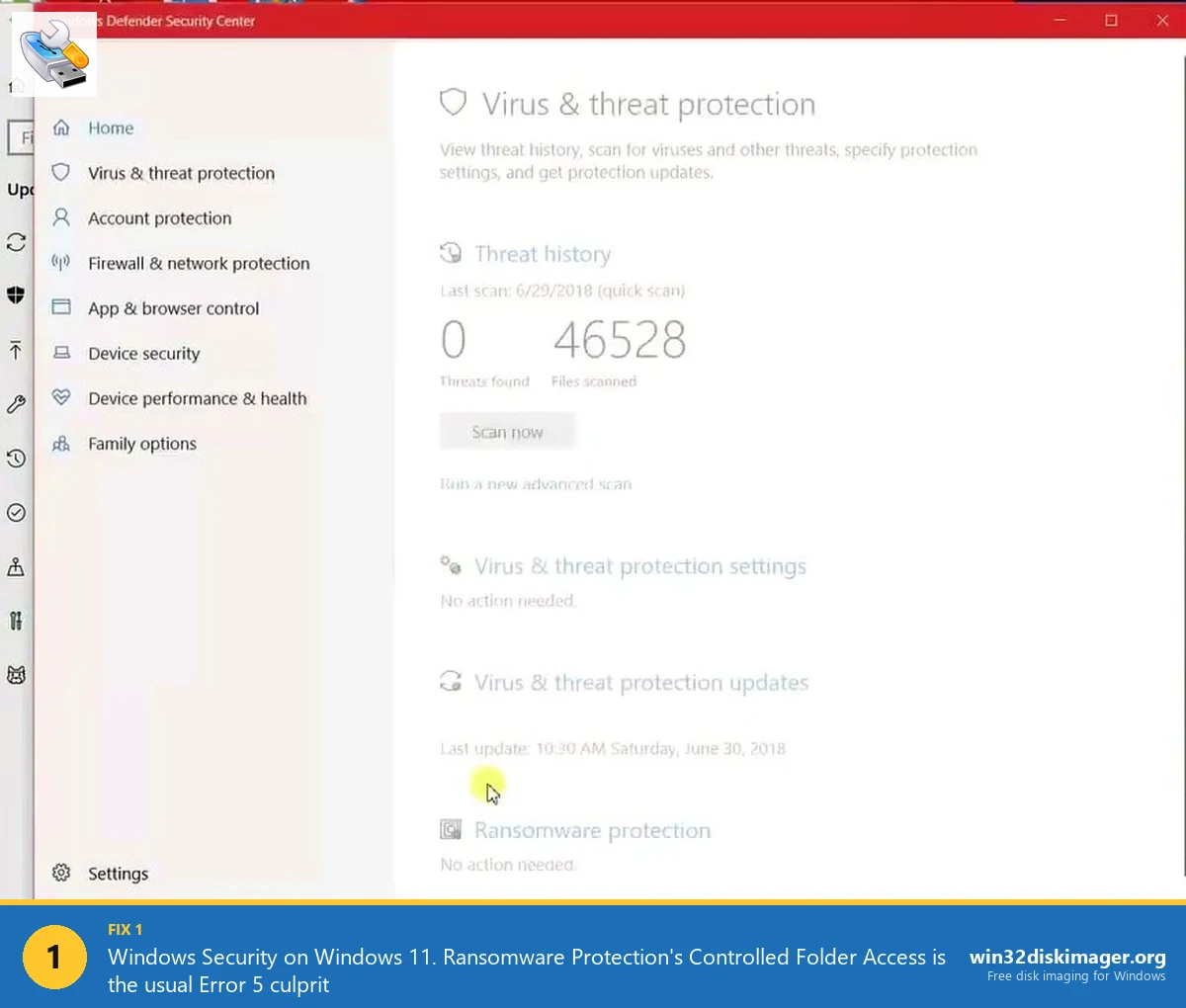
Windows Security → Virus & threat protection → Ransomware protection → Allow an app through Controlled folder access → Add DiskImager.exe.
See our Error 5 guide for the detailed walkthrough. Same whitelist helps with detection issues too.
Fix 5: Format the SD Card (Last Resort)
If the SD card has weird partition metadata, unrecognized filesystems (some industrial or dashcam cards use FAT16 or proprietary formats), Win32 Disk Imager’s enumeration may reject it.
Fix: format the card with a standard filesystem first.
- Right-click the drive in File Explorer → Format.
- File system: NTFS or exFAT (avoid FAT32 for cards over 32 GB).
- Quick format. Start.
- Retry Win32 Disk Imager.
This wipes any existing data. Don’t do this if you need to preserve what’s on the card, Read it to an IMG first (but wait, can’t, that’s why we’re here).
Alternative: use SD Memory Card Formatter from sdcard.org, which handles SD-specific formatting quirks better than Windows.
Fix 6: Run Hardware and Devices Troubleshooter
Windows 11’s built-in troubleshooter can sometimes fix device-detection issues:
- Settings → System → Troubleshoot → Other troubleshooters.
- Find “Hardware and Devices.” Run it.
- Windows scans for common issues and applies fixes.
Hit-or-miss, but 5 minutes of automated fixes is worth trying.
Fix 7: Check for Conflicting Software
Some background apps hold exclusive locks on drive enumeration:
- Google Drive for Desktop (virtual drive mounting interferes).
- OneDrive with Files On-Demand.
- pCloud, Dropbox.
- VeraCrypt with mounted volumes.
- Some backup tools (Acronis, EaseUS, Macrium) with persistent drivers.
- Antivirus during an active scan.
Pause or quit these, then try Win32DI. If fixes it, you’ve found the conflict; add the relevant .exe to the AV or app’s exclusion list going forward.
Diagnostic Flow Summary
Priority order:
- Full reset sequence (Fix 1) — resolves 70-80%.
- Run as admin — catches the UAC-blocked cases.
- Check Disk Management — separates “Windows-level issue” from “Win32DI-level issue.”
- Restart Virtual Disk Service — fixes stale-cache cases.
- Try different port/reader/card — isolates hardware.
- Quit conflicting background apps — Google Drive, OneDrive, etc.
- Disable Fast Startup + full reboot — nuclear software reset.
- Update drivers via Device Manager.
- Format the card (destructive, last resort for Cause 5).
Most cases resolve in steps 1-3. The remaining steps handle edge cases.
Drive Letter Conflicts
Occasionally, Windows assigns a drive letter that conflicts with something else (mapped network drive, Substituted drive). Win32 Disk Imager then either shows the wrong drive or hides it.
Manually assign a different letter:
- Disk Management (Win+X).
- Right-click the SD card partition → Change Drive Letter and Paths.
- Change or Remove, then Add with a new letter (Z: is usually safe for imaging work).
- Close Win32DI, reopen.
Drive letter conflicts are rare but worth mentioning. If you’ve got ancient net use or subst commands from old scripts, they can reserve letters.
Preventing Future Detection Problems
Habits that avoid this issue:
- Always insert SD card before launching Win32 Disk Imager, not after.
- Use a dedicated USB 3.0 card reader for imaging work instead of laptop built-in SD slots (more reliable driver support).
- Keep Google Drive / OneDrive paused during imaging sessions.
- Run Win32 Disk Imager with admin privileges always (set Compatibility → Run as administrator in .exe properties).
- Don’t use Windows Fast Startup (set it to restart/shutdown normally).
- Replace old/cheap USB card readers; $10 on Amazon gets you a reliable one.
Specific Scenario Walkthroughs
Three concrete detection problems I’ve debugged and how they resolved:
Scenario A: Laptop built-in SD slot, card not detecting. Windows 11 24H2 laptop, built-in SD slot. Inserted Pi OS card. File Explorer shows the boot partition just fine. Win32 Disk Imager’s dropdown: empty. Tried full reset sequence, no change. Turns out the laptop’s built-in SD reader driver was outdated. Device Manager → the SD Host Adapter had a yellow triangle. Updated driver via OEM’s support page, detection worked.
Scenario B: USB 3.0 hub with multiple drives. Desktop with a 10-port USB hub, 6 devices plugged in (keyboard, mouse, webcam, two external SSDs, card reader). Win32DI detected 3 of 6 drives inconsistently. Moving the card reader directly to a motherboard USB port: all drives appeared. Hub was adding enumeration latency that exceeded Win32DI’s startup scan window. Fix: bypass the hub for imaging work.
Scenario C: Google Drive mounting G: caused Win32DI to show empty dropdown. Normal desktop, no weird drivers, everything current. But Win32DI’s device dropdown was completely empty despite SD card plugged in. Task Manager showed Google Drive for Desktop running. Paused Google Drive (tray → gear → Pause syncing), Win32DI detection worked instantly. Same interaction that causes the Won’t Open bug.
FAQ
Why does Windows see my SD but Win32 Disk Imager doesn’t?
Win32 Disk Imager uses Windows’ Virtual Disk Service API to enumerate drives. If VDS is in a weird state (stale cache after a driver glitch), Win32DI gets incomplete results while File Explorer (which uses a different API layer) still works. Restart VDS (services.msc → Virtual Disk → Restart) to fix.
Does this happen more on Windows 11 than Windows 10?
Slightly, yes. Windows 11 is more aggressive with virtual-drive features (OneDrive mounts, BitLocker encryption, Storage Sense), which creates more interference. Win 10’s simpler device model had fewer of these issues.
Can I refresh the device list in Win32DI without restarting the app?
No. Win32 Disk Imager has no refresh button and enumerates at launch only. Close and reopen the app when you plug in new drives.
Why does my internal C: drive sometimes appear in the Device dropdown?
Rare but alarming bug. Usually means Win32DI’s filter for “removable only” failed (possibly due to a non-standard SATA controller driver). Don’t select C:, that would wipe your Windows install. Update chipset/SATA drivers to latest, reboot.
Does the SD card size matter?
Not for detection. Win32 Disk Imager supports any size. Very large cards (512 GB+) sometimes take longer to enumerate but do appear eventually.
What if the SD card works in one reader but not another?
One reader has a hardware or driver issue. Use the one that works. Replace the faulty reader; cheap ones are $5-15.
Do USB 3.0 ports behave differently from USB 2.0?
Yes. USB 3.0 goes through additional driver stack (xHCI) that occasionally has bugs. If USB 3.0 port doesn’t work, try USB 2.0. If both fail, driver issue. Update BIOS/chipset drivers.
Does plugging into a USB hub help or hurt?
Usually hurts for this use case. USB hubs add another driver layer and can introduce enumeration quirks. Plug the reader directly into a motherboard USB port when imaging.
Can I force-refresh the Virtual Disk Service via command line?
Yes. Admin cmd: net stop vds then net start vds. Faster than services.msc GUI. Same effect.
Is there a Registry key I should check?
Check HKLM\SYSTEM\CurrentControlSet\Services\USBSTOR. The Start value should be 3 (manual). If set to 4 (disabled), USB storage devices won’t enumerate. Change to 3, reboot.
Can BitLocker prevent detection?
Yes, sort of. BitLocker-encrypted cards show in Win32DI but you can’t write to them without unlocking first. Unlock via Control Panel → BitLocker, or format the card to remove encryption. See our Error 5 guide Fix 8 for the BitLocker path.
Should I run Win32DI on an ARM Windows laptop if SD detection is broken?
ARM Windows (Snapdragon laptops) runs Win32DI in emulation. Usually works but emulation layer can introduce detection latency. Try increasing the wait time after inserting to 30+ seconds before launching.
Wrapping Up
Drive detection issues in Win32 Disk Imager are almost always environmental, Windows 11’s device enumeration being slow or cached, background apps holding locks, driver glitches. The full reset sequence (close app, unplug reader, wait, replug, wait, relaunch as admin) resolves 70-80% of cases in under a minute. For the remaining cases, Disk Management tells you whether Windows itself sees the drive, which separates OS-level from app-level issues. For the other Win32 Disk Imager troubleshooting scenarios, check the Error 5 guide and Won’t Open guide.
Related Guides
Pair this guide with the rest of the Win32 Disk Imager knowledge base. These cover the adjacent workflows you’ll hit when working with disk images, bootable USBs, and Windows partition management.
- Win32 Disk Imager Error 5: Access Is Denied — 9 Working Fixes — The full troubleshooting tree for Error 5 on Win 10/11 — Controlled Folder Access, antivirus conflicts, SD lock switches, Safe Mode, and Group Policy.
- Win32 Disk Imager Won’t Open on Windows 11 — Compatibility Fix Guide — Fix silent launch failures, splash-and-disappear, and the Google Drive / Controlled Folder Access conflicts that stop Win32DI from opening on Win 11.
- How to Use Win32 Disk Imager — Complete Beginner Guide — The full reference for the Win32 Disk Imager tool itself — install, UI walkthrough, and common workflows.
- Win32 Disk Imager Crashes on Startup — Event Viewer Diagnosis + 9 Fixes — Event Viewer + faulting-DLL diagnosis walkthrough, with the fix for each common module — VC++, Qt, GPU drivers, AppData prefs, and the 24H2 AMD DEP bug.