
Disk image file formats are weirdly confusing for what should be a simple concept. .img, .iso, .bin, .vhd, .vmdk, .dmg, .qcow2, .raw, .ima, the list keeps going. Most “what’s the difference” guides online conflate these formats, get the technical details wrong, or just don’t differentiate the use cases. The actual answer matters because picking the wrong format wastes hours of failed flashing or compatibility errors.
This article focuses on the three formats Win32 Disk Imager users actually deal with day-to-day: .img, .iso, .bin. They’re related but different. I’ll explain the actual technical differences (without the Wikipedia-style word salad), when each is used, how they map to common workflows, and when to convert between them. Plus the meta-question of why so many formats exist at all and whether anyone is trying to fix the mess in 2026.
TL;DR: .img = raw byte-for-byte copy of any disk (typically SD/USB/HDD). .iso = byte-for-byte copy specifically of CD/DVD media (uses ISO 9660 filesystem). .bin = generic binary file, often used as part of CD image pairs (.bin/.cue) for retro game ROMs. All three are similar but evolved from different historical contexts. Win32 Disk Imager handles .img and .iso well; .bin is mostly a legacy concern.
Quick Format Definitions
.img (Image): Raw byte-for-byte copy of a storage device, no filesystem assumed. Originally for floppy disks (1980s), now used for SD cards, USB sticks, HDD images, virtual disks. Filesystem-agnostic, contains whatever was on the source.
.iso (ISO 9660): Image of optical disc media (CD/DVD/Blu-ray). The “ISO” refers to the ISO 9660 filesystem standard CDs use. Strictly speaking an ISO is an .img with the additional constraint of ISO 9660 filesystem inside.
.bin (Binary): Catch-all for binary data. In disc-image context, .bin is paired with .cue (text file describing track layout) for image dumps of CDs, especially audio CDs and game discs.
Confusing because the formats overlap heavily. A bootable Linux .iso written to a USB stick is functionally an .img. A .bin without its .cue is just an .img. Lines are blurry.
Why Different Formats Exist
Historical reasons, not technical necessity. Each format was created for a specific media type during different eras:
- 1970s-80s: Mainframe disk dumps (early raw images, no standard extension).
- Mid-1980s: Floppy disk imaging on PCs and Apple. .img and .ima conventions.
- 1990s: CD-ROM era. ISO 9660 filesystem standardized. .iso emerged for CD images. .bin/.cue for audio CDs and game discs (which had multiple tracks).
- 2000s: DVD era extends .iso. Virtual machine disk formats appear (.vmdk, .vhd, .qcow).
- 2010s: SD cards and USB flash. .img makes a comeback for raw SD/USB images. Cross-platform Linux distros adopt “isohybrid” .iso that works as both.
- 2020s: Cloud and container era. .img persists; .iso persists; .bin/.cue mostly retro/emulation only.
Net result: many formats, each with their own historical context, much overlap.
.img Format Deep Dive
An .img file is byte-for-byte content of a storage device. No header, no metadata, no compression by default. Just raw sectors.
What’s inside:
- Sector 0: MBR or protective MBR (boot sector + partition table).
- Sectors 1-33: GPT header and partition table entries (if GPT).
- Partition data: actual filesystems (ext4, NTFS, FAT32, etc.).
- Empty/unallocated space: also written, just zeros or leftover data.
File size: equals the source device size exactly. A 32 GB SD card produces a ~32 GB .img.
Use cases:
- Pi OS distribution (download Pi OS .img.xz, decompress, flash).
- SD card backups (Win32 Disk Imager Read produces .img).
- USB drive snapshots.
- HDD/SSD imaging for cloning.
- Embedded device firmware backups.
- Forensic disk imaging.
Tools that handle .img: Win32 Disk Imager, balenaEtcher, Pi Imager, dd (Linux), and most disk-imaging tools.
.iso Format Deep Dive
An .iso file is technically a .img with the constraint that the contained filesystem is ISO 9660 (the standard CD filesystem). In practice, modern .iso files often use UDF (Universal Disk Format, the DVD standard) instead.
What’s inside:
- El Torito boot signature at sector 17 (for bootable CDs).
- ISO 9660 or UDF filesystem with files/folders.
- For modern Linux ISOs: hybrid format with both El Torito (CD boot) and MBR/GPT (USB boot) signatures.
File size: typically matches CD/DVD capacity (700 MB / 4.7 GB / etc.) or larger for modern ISO releases.
Use cases:
- OS installer images (Windows ISO, Ubuntu ISO, every Linux distro).
- CD/DVD media backups.
- Bootable rescue / utility tools (SystemRescue, GParted Live).
- Game installers (older games came on physical CDs).
- Software distribution that wants to fit on a CD/DVD.
Tools: same as .img mostly, plus optical-burn tools (ImgBurn, CDBurnerXP).
Hybrid ISOs explained: in the 2000s, Linux distros realized people wanted to install from USB, not CD. They modified ISOs to include both El Torito (CD boot) and MBR (USB raw write) signatures. Result: same .iso file works for both burning to CD and dd’ing to USB. Modern Ubuntu, Fedora, Mint, Arch all use isohybrid.
.bin Format Deep Dive
.bin is a generic binary file extension. Multiple distinct uses:
BIN/CUE pair (for CD images): .bin is the raw track data, .cue is a text file with track layout (where audio tracks start, where data tracks start). Pair them together to recreate a CD image.
Example .cue file:
FILE "game.bin" BINARY
  TRACK 01 MODE2/2352
    INDEX 01 00:00:00
  TRACK 02 AUDIO
    INDEX 00 03:42:51
    INDEX 01 03:44:74
.bin is the data stream, .cue tells emulators / burners how to read it.
Mostly used for: retro game ROMs (PS1, PSP, Sega Saturn, etc.), audio CD rips, mixed-mode discs (data + audio tracks).
Tools: game emulators (PCSX, Mednafen, etc.), older CD-burning software (CDRwin, Nero), retro-gaming utilities.
Win32 Disk Imager and .bin: Win32DI doesn’t natively handle BIN/CUE pairs. The .bin alone may work as a raw image but won’t preserve track structure. For CD/DVD imaging that needs BIN/CUE preserved, use ImgBurn or similar.
Other .bin uses:
- Firmware files (router firmware, IoT device updates).
- Compiled binaries (Linux executables).
- Generic data dumps with no specific format.
Just because something has .bin extension doesn’t mean it’s a disc image; could be anything binary.
Direct Comparison Table
| Property | .img | .iso | .bin (CD pair) |
|---|---|---|---|
| Filesystem expected | Any (or none) | ISO 9660 or UDF | Raw track data |
| Source media | SD, USB, HDD | CD, DVD, BD | CD (often games) |
| Boot capable | If source had bootloader | Yes (with bootloader) | Depends |
| Companion file | None | None | .cue text file |
| Win32 Disk Imager support | ✅ Native | ✅ With filter trick | ❌ Use other tools |
| Common compression | .img.xz, .img.gz | .iso (rarely compressed) | .bin (raw, .7z external) |
| Modern usage | Pi OS, embedded firmware | OS installers, Linux distros | Retro games, audio CD rips |
| Mount in Windows | Tools needed (OSFMount) | Native (Win 8+) | Tools needed |
Bottom line: .img is general-purpose, .iso is CD/DVD-focused, .bin is legacy CD/audio.
Can You Convert Between Formats?
Yes, with caveats:
.img → .iso: Trivial if the .img contains ISO 9660 filesystem (mostly already the case for OS installer .img files). Otherwise the conversion is mostly cosmetic, just renaming. AnyToISO tool helps.
.iso → .img: Even more trivial. An .iso is functionally an .img. Most modern OS .iso files work fine when treated as .img and flashed via Win32 Disk Imager.
.bin/.cue → .iso: If the .bin contains a single data track (no audio), tools like AnyToISO or IsoBuster can convert. Multi-track .bin/.cue with audio: not really convertible (the audio tracks don’t fit in ISO 9660 structure).
.bin → .img: Just rename the file. .bin and .img are byte-for-byte equivalent if the .bin doesn’t have CD-specific track formatting.
Conversion to/from .vhd, .vmdk, .qcow2: use qemu-img (Linux/Mac/WSL): qemu-img convert -O raw source.vhd output.img.
Which Format For What?
Quick decision guide:
Backing up an SD card: .img. Use Win32 Disk Imager Read. See our SD backup guide.
Distributing an OS installer for download: .iso. Industry standard. Linux distros, Windows, etc.
Backing up a video game disc: .bin/.cue if multi-track / audio. .iso if single-track data only.
Capturing firmware from an embedded device: .img.
Virtual machine disk: .vhd / .vmdk / .qcow2 / .raw depending on hypervisor. .img can be used with QEMU.
For Win32 Disk Imager workflows specifically: .img and .iso are what you’ll deal with. .bin is mostly outside Win32DI’s scope.
Compression: .img.xz, .img.gz, .iso.xz
Raw .img and .iso files are large (multi-GB). Distribution typically involves compression:
- .img.xz: XZ compression (LZMA2). Best ratio, slow decompression. Used by Pi OS distributions.
- .img.gz: Gzip. Faster decompression, worse ratio. Older Linux distros.
- .zip / .7z: Container format wrapping the .img/.iso. Common on Windows.
- .iso.xz / .iso.gz: Less common (ISOs already optimized for size). Some Linux mirrors offer them.
For Win32 Disk Imager: always decompress before flashing. Win32DI doesn’t accept compressed formats. Pi Imager and balenaEtcher do (decompress on-the-fly).
Boot Behavior: Why Not All Images Boot the Same
An image’s “boot ability” depends on what’s in sector 0:
Pi OS .img: contains an MBR with reference to partition 1 (FAT32 boot). Pi firmware reads partition 1, runs the bootloader files. Boots Pi.
Modern Linux .iso (hybrid): contains both El Torito (for CD boot) and MBR (for USB boot). Either burning to CD or dd’ing to USB produces bootable media.
Windows installer .iso: contains GPT + EFI System Partition. UEFI firmware boots it. Less reliable on Legacy BIOS without Rufus’s hybrid layout.
Generic .img (e.g., a raw SD card backup): boot capability depends on what was on the source. If source booted, image boots when restored. If source was just data, image isn’t bootable.
The format extension doesn’t predict boot capability; the contents do.
Mounting and Browsing Each Format
To inspect content without flashing:
.iso: double-click in Windows 8+, mounts as virtual DVD drive. Browse files in File Explorer. Eject when done.
.img: needs OSFMount or ImDisk on Windows. Linux: sudo losetup -P /dev/loop0 file.img && sudo mount /dev/loop0p2 /mnt/img.
.bin/.cue: mount with virtual CD tools (DAEMON Tools, Alcohol 120%, WinCDEmu). Or extract individual files with IsoBuster.
.7z / .zip wrapping image files: 7-Zip can browse the archive contents directly without extracting. See files inside before deciding to flash.
Useful when you’re not sure what’s in the file or want to grab a specific file out of an .img backup.
Other Formats Worth Knowing
Beyond .img, .iso, .bin:
- .vhd / .vhdx: Microsoft Virtual Hard Disk. Hyper-V and Windows-To-Go. Native mount support in Windows 8+.
- .vmdk: VMware Virtual Machine Disk. VMware Workstation, ESXi.
- .qcow2: QEMU’s copy-on-write disk format. Linux/KVM ecosystem.
- .dmg: Apple Disk Image. macOS only. Used for software distribution on Mac.
- .dd: Sometimes used as alternate extension for raw images created by Linux
ddcommand. Functionally identical to .img. - .raw: Same as .img usually. Used by some QEMU and forensic tools.
- .ima / .imz: Older floppy disk image formats. Mostly historical.
- .nrg: Nero Burning ROM proprietary CD image. Mostly legacy.
- .mds / .mdf: Alcohol 120% proprietary disc image format. Mostly legacy.
- .ccd / .img / .sub: CloneCD format triplet. Includes subchannel data.
For Win32 Disk Imager users in 2026: focus on .img and .iso. Everything else is niche or legacy.
How Win32 Disk Imager Treats Each Format
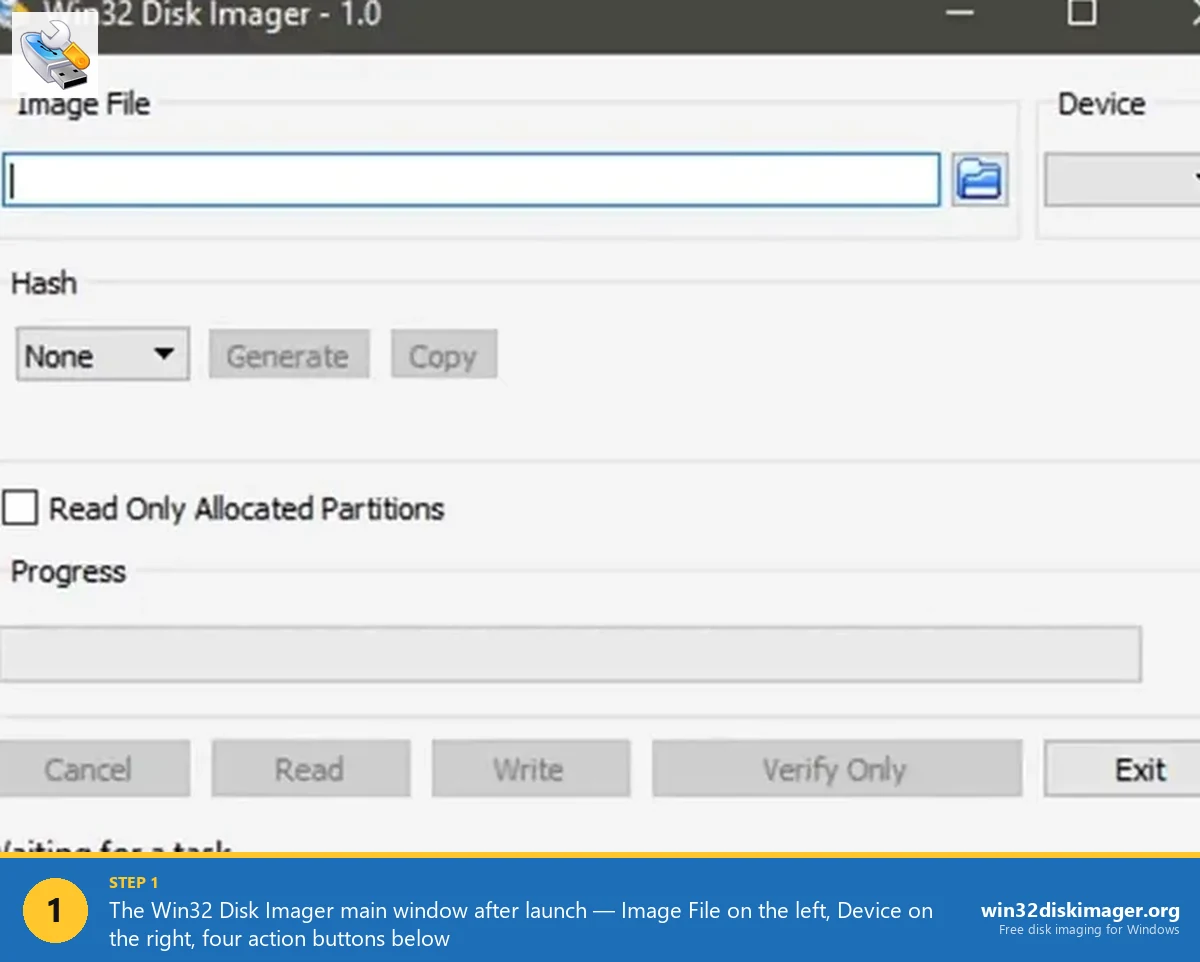
.img: Native support. File picker shows .img by default. Read produces .img. Write accepts .img. The format Win32 Disk Imager was built for.
.iso: Supported but file picker filter quirk. Change picker to “*.* (All files)” to see ISOs. Once selected, treated identically to .img (raw byte write).
.bin: Only if you have a single-data-track .bin without .cue. Treated as .img. For CD-pair .bin/.cue, use ImgBurn or similar.
.vhd / .vmdk / .dmg: Not supported. Use other tools (qemu-img to convert, then Win32DI).
For most workflows, .img and .iso cover everything Win32 Disk Imager users need.
Real-World Confusions Sorted Out
Specific confusions I see often:
“Is a .iso file the same as a .img file?” Functionally yes, in 90% of cases. .iso strictly means “ISO 9660 filesystem image,” but in 2026 the term is loose. A modern Linux .iso is essentially an .img with bootable hybrid layout.
“My Pi OS download is .img.xz, what do I do with the .xz?” Decompress it. Right-click → 7-Zip → Extract Here. You’ll get a .img file. That’s what Win32 Disk Imager wants.
“Can I burn a .img to CD?” Yes via ImgBurn or similar, but the resulting CD won’t boot most things. .img is for raw disk write, not optical media. Use .iso for bootable CDs.
“My game ROM is .bin and I have no .cue. Won’t work in emulator.” Try renaming to .iso for testing. If it works in the emulator, the .bin was actually a single-track data image. If not, you need the .cue.
“Why does my .iso file look like an executable?” Some Windows download tools wrap .iso content in self-extracting .exe wrappers. Check the file extension; if it’s .exe, run it to extract the actual .iso.
Performance Differences
Are there speed differences between formats? Slightly:
- .img write speed: bottlenecked by destination media, not format. Same speed as .iso.
- .iso with isohybrid layout: identical to .img performance.
- Compressed .img.xz / .img.gz: tools that decompress on-the-fly (Pi Imager, Etcher) add ~10-20% time vs raw .img.
- .bin/.cue: not really comparable; different tooling.
Format choice doesn’t materially affect speed. Hardware (USB port speed, SD card class) dominates.
FAQ
Can I just rename my .iso to .img and use Win32 Disk Imager?
Yes for most modern Linux .iso files. Renaming makes Win32 Disk Imager’s file picker show it without changing the filter. Functionally identical content. Doesn’t work for .iso files that require specific bootloader handling (some Windows installers).
What about .img.xz files?
Decompress with 7-Zip first (right-click → 7-Zip → Extract Here). Win32 Disk Imager doesn’t natively decompress.
If I have a .bin without a .cue, can I still use it?
For data-only single-track .bin files, yes, treat as .img. For multi-track .bin (audio + data), the .cue is required to interpret the structure. Without .cue, content is functional but track separation is lost.
Why doesn’t Windows mount .img files natively?
Windows 8+ can mount some .img files (specifically VHD-format ones). Generic .img files (Pi OS, raw SD backups) aren’t VHD-format and don’t auto-mount. Use OSFMount or ImDisk to mount these.
Are .img files safer than .iso?
Same safety. Both are just data files; the contents matter, not the format. Always download from official sources and verify SHA256 hashes.
How do I verify what filesystem is inside an .img?
Mount it (OSFMount on Windows, losetup on Linux), then check filesystem from there. Or use fdisk -l image.img on Linux to read the partition table.
Can I create a .img file from scratch?
Yes. On Linux: dd if=/dev/zero of=blank.img bs=1M count=4096 creates a 4 GB empty .img. Then use parted/mkfs to add partitions and filesystems.
What’s the largest .img file possible?
Limited by filesystem of where the .img is stored. NTFS supports up to ~256 TB single file. exFAT same. FAT32 caps at 4 GB. So a 32 GB SD card .img won’t fit on a FAT32 USB; needs NTFS or exFAT for storage.
Why is the .iso for my Windows install ~5.5 GB but the original CD is 700 MB?
The “ISO” extension stuck around even after media moved beyond CDs. Modern Windows installer “ISOs” are actually DVD/UDF images at 4-8 GB. Same format extension, larger content.
Can I encrypt an .img file?
Yes, with 7-Zip (.7z encrypted with AES-256) or VeraCrypt container. Encrypted file isn’t an .img anymore (it’s a .7z); decrypt before flashing.
Are there modern alternatives to .img and .iso?
Container formats like Docker images (.tar) and OCI images replace some legacy use cases for software distribution. For raw disk imaging, no replacement; .img/.iso are still the standard.
Is there an .img standard, or just a convention?
Convention only. No official “.img” specification. Just an extension implying “raw byte data.” Different tools may add their own metadata or compression while still calling it .img.
Should the disk image format I use match the destination?
Not really. Tool determines compatibility, not file extension. Win32 Disk Imager treats both .img and .iso identically (raw write). The destination doesn’t care about the source filename.
Wrapping Up
For Win32 Disk Imager users, .img and .iso are functionally interchangeable formats; .bin is mostly historical/retro-gaming. Don’t get too caught up in the format names; focus on what’s inside (filesystem, bootloader, partition table). For more on disk image concepts, see What Is an IMG File. For workflow guides see Flash ISO with Win32DI and SD card backup guide.
Related Guides
Pair this guide with the rest of the Win32 Disk Imager knowledge base. These cover the adjacent workflows you’ll hit when working with disk images, bootable USBs, and Windows partition management.
- What Is an IMG File? (And Why Win32 Disk Imager Uses It) — Byte-for-byte disk image files explained — vs ISO/BIN/VHD, how to mount and modify, compression formats, history of the format.
- How to Flash an ISO File with Win32 Disk Imager (2026) — Walkthrough for ISO-to-USB with the file-picker filter trick, isohybrid explainer, when to switch to Rufus, and a tested ISO compatibility list.
- How to Use Win32 Disk Imager — Complete Beginner Guide — The full reference for the Win32 Disk Imager tool itself — install, UI walkthrough, and common workflows.
- Top 10 Win32 Disk Imager Alternatives for Windows 11 (2026) — Ranked 10 imaging tools by use case — Rufus, Etcher, Pi Imager, Ventoy, USBImager, Clonezilla, and five more — with honest tradeoffs.