
I dual-boot a ThinkPad between Ubuntu 24.04 and Windows 11 and keep a shared 1 TB USB drive in NTFS for passing files between the two. Windows formats NTFS in 10 seconds from File Explorer. Ubuntu used to pretend it couldn’t even mount the thing without a driver package, and formatting one from Linux was a three-command dance that broke half the time.
As of Ubuntu 22.04 and newer, NTFS is basically first-class. The kernel ships with Paragon’s NTFS3 driver (the new one, not ntfs-3g), and format/mount/read/write all Just Work. But there are still 4-5 gotchas where I see people get stuck, so here’s the actual 2026 workflow with all the edge cases I’ve personally run into.
TL;DR: sudo apt install ntfs-3g (probably already installed), identify the target with sudo fdisk -l, unmount if mounted (sudo umount /dev/sdX1), then sudo mkfs.ntfs -Q -L "Data" /dev/sdX1. The -Q flag is the quick-format equivalent, skip it for a full zero-wipe.
Why Format NTFS from Linux at All?
Two realistic reasons:
- Cross-platform USB drives. I keep one NTFS-formatted drive that mounts on Windows, Linux, and (with a driver) macOS. exFAT works too, but NTFS handles files over 4 GB better and is the default for Windows backup software, including Win32 Disk Imager IMG backups.
- Rebuilding a drive that Windows refuses to touch. If Windows Disk Management says “Windows was unable to complete the format,” Linux’s
mkfs.ntfsoften just works. I’ve rescued maybe a dozen USB sticks this way.
Also useful in headless server setups, WSL workflows where you need to prep a drive for a Windows machine you don’t want to boot yet, or when you’re running Linux recovery off a live USB and need to reformat the Windows partition before restoring a backup.
ntfs-3g vs NTFS3 (the Kernel Driver)
Quick driver history, because this confuses people:
- ntfs-3g is the classic FUSE-based userspace driver. Works on every distro, slower, but extremely reliable. Still the default for
mkfs.ntfsand most utilities. - NTFS3 is Paragon Software’s kernel driver, merged into mainline Linux in 5.15 (November 2021). Faster reads/writes, async I/O. Default for
mount -t ntfson Ubuntu 22.04+.
For formatting, you want ntfs-3g installed because it ships the mkfs.ntfs binary. For mounting and reading/writing, NTFS3 is what’s actually handling the filesystem on modern distros. You don’t pick between them manually, the tools just use whichever is appropriate.
Install on Ubuntu/Debian:
sudo apt update
sudo apt install ntfs-3g
On Fedora: sudo dnf install ntfs-3g. On Arch: sudo pacman -S ntfs-3g. Already installed on Ubuntu Desktop by default since 22.04.
Identify the Target Drive (Don’t Skip This)
Every terminal format horror story I’ve heard starts with the person running mkfs on the wrong device. Don’t be that person. Run these first:
sudo fdisk -l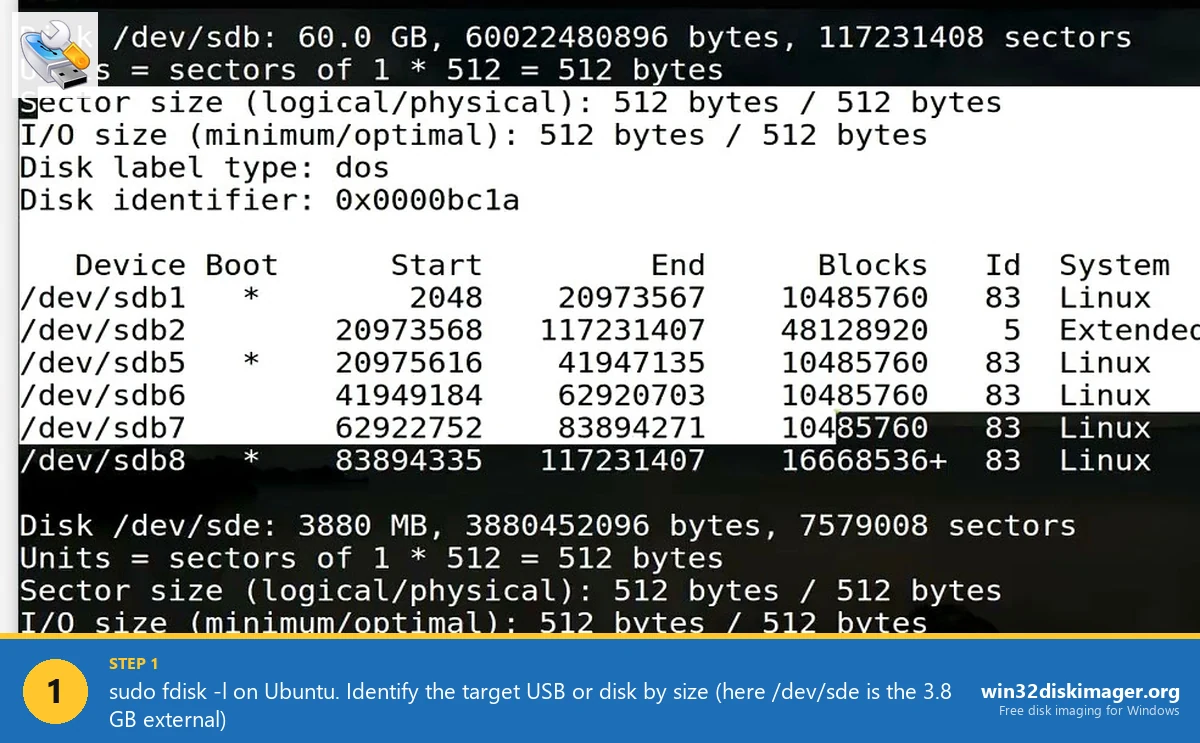
This lists every block device with its size, partition table type, and partitions. Find the one matching your target drive’s size (e.g., a 64 GB USB stick shows as roughly 60.0 GB). Device nodes usually look like /dev/sda, /dev/sdb, /dev/sdc, with numbered partitions on each (/dev/sdb1, /dev/sdb2).
Double-check with:
lsblk -flsblk -f shows the tree of disks and partitions along with filesystem types and mount points. The drive you’re about to format should be unmounted, or at least not holding anything you care about.
⚠️ Heads up: /dev/sda is typically your boot drive on a laptop. USB drives get later letters. Before running any destructive command, verify the target is NOT your system drive. If in doubt, df -h shows which drive / is mounted from.
Unmount Before Formatting
You can’t format a mounted filesystem. Ubuntu auto-mounts USB drives you plug in, so unmount first:
sudo umount /dev/sdb1If it’s mounted at multiple points (rare, happens with bind mounts):
sudo umount -a /dev/sdb1If umount fails with “target is busy”, something is using it. lsof | grep /mnt/usb (or wherever it’s mounted) shows what. Kill the process or close the file manager window and try again.
The Actual Format Command
With the drive identified and unmounted:
sudo mkfs.ntfs -Q -L "Data" /dev/sdb1Flags:
-Q(or--quick) does a quick format. Skips the zeroing pass. On a 1 TB drive that’s the difference between 10 seconds and 4 hours. Always use this unless you’re specifically wiping the drive for resale.-L "Data"sets the volume label. Shows up as the drive name in File Explorer on Windows and in Files on GNOME./dev/sdb1is the partition (not the whole disk). If you want to wipe the partition table too, use the whole disk (/dev/sdb), which also re-initializes the partition.
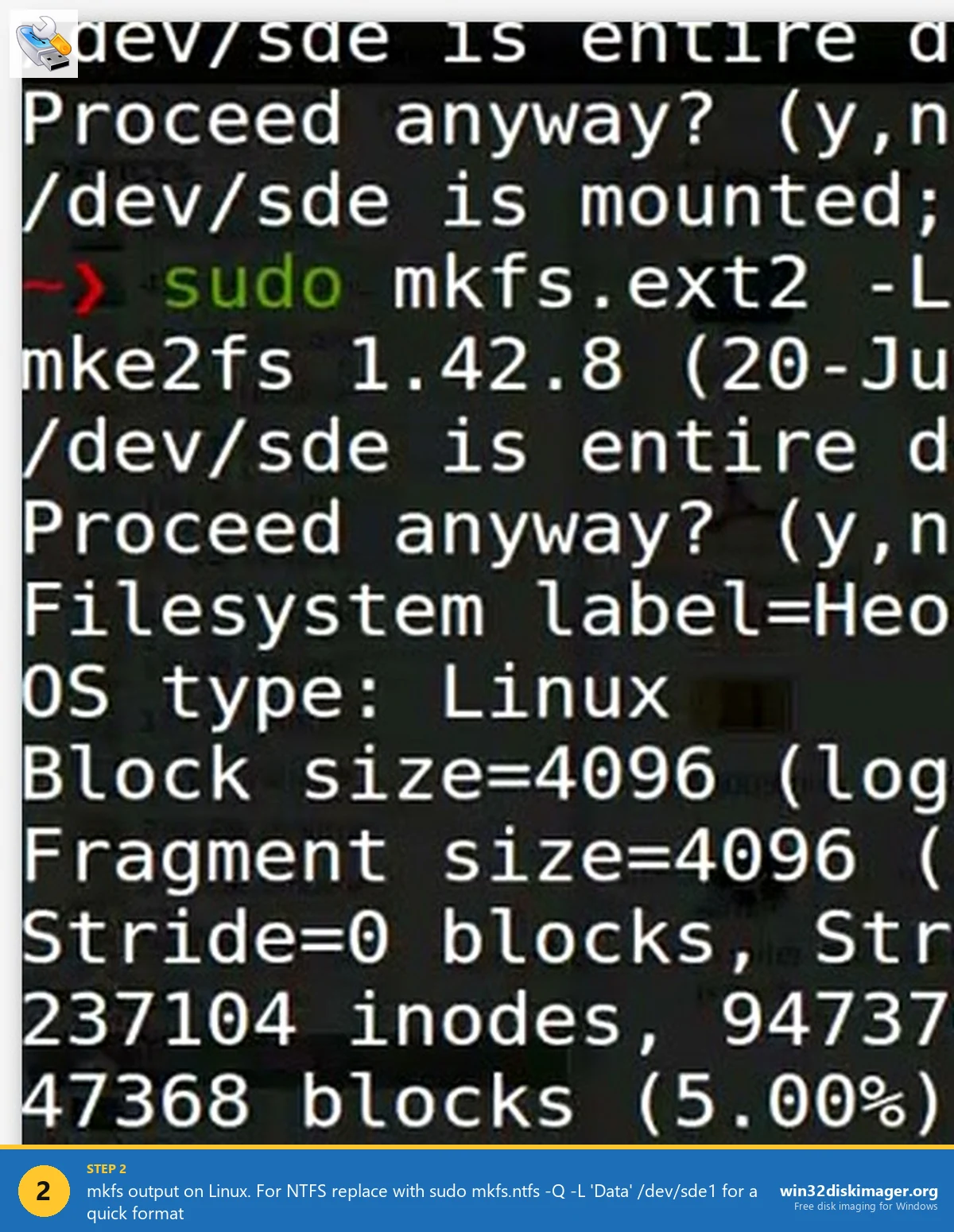
On a healthy USB stick, quick format completes in 5-15 seconds and prints mkntfs completed successfully. Have a nice day. (which I find charming, yes, that’s the actual output).
Wipe and Re-Partition from Scratch
If the drive has weird partition-table issues and you want to start totally clean:
sudo wipefs -a /dev/sdb
sudo parted /dev/sdb mklabel gpt
sudo parted -a optimal /dev/sdb mkpart primary ntfs 0% 100%
sudo mkfs.ntfs -Q -L "Data" /dev/sdb1
That:
wipefsremoves existing filesystem signatures (MBR/GPT headers, FAT boot sectors, etc.)parted mklabel gptcreates a fresh GPT partition table (or usemsdosfor MBR if you need legacy BIOS compatibility)parted mkpartcreates one partition spanning the whole drive, aligned optimallymkfs.ntfsformats the new partition
Takes maybe 30 seconds total on a USB stick. Works on drives Windows flat-out refuses to format.
The GParted GUI Alternative
If command line isn’t your thing, install GParted:
sudo apt install gpartedLaunch it (GUI app in the Activities overview), pick the target disk from the top-right dropdown (triple-check this), right-click the partition → Unmount → right-click again → Format to → NTFS → click the green check to Apply. Done.
GParted is great for visual partition management. The one caveat: it doesn’t let you pick format flags (quick vs full, cluster size), it uses sensible defaults. Good enough 99% of the time.
Using WSL to Format NTFS from Windows
Interesting edge case. If you’re on Windows 11 with WSL2 and want to format a drive using Linux tools, you can:
wsl --mount \\.\PHYSICALDRIVE2 --bare
wsl
sudo mkfs.ntfs -Q -L "Data" /dev/sdc
\\.\PHYSICALDRIVE2 is the Windows path to your physical disk (check wmic diskdrive list brief for the numbers). The --bare flag gives WSL raw block access without mounting the partitions.
When would you do this? When Windows Disk Management is being stubborn and you want the full Linux toolset (parted, wipefs, mkfs.ntfs) without booting a live USB. I’ve done this exactly twice, but when you need it, it’s a life-saver.
Mount Options That Actually Matter
After formatting, you’ll want to mount the drive. In /etc/fstab:
UUID=XXXXXXXX /mnt/data ntfs-3g defaults,uid=1000,gid=1000,umask=022 0 0Get the UUID with sudo blkid /dev/sdb1. The uid=1000,gid=1000,umask=022 part is what makes the drive writable by your user without sudo, assuming your user’s ID is 1000 (check with id).
Alternatively, for the faster NTFS3 kernel driver:
UUID=XXXXXXXX /mnt/data ntfs3 defaults,uid=1000,gid=1000,umask=022 0 0Swap ntfs-3g for ntfs3. Benchmarks I’ve seen show 20-40% faster sequential reads with NTFS3 on big files, noticeable on USB 3.2 drives.
FAQ
Is NTFS safe to use on Linux?
As of Ubuntu 22.04+ with the NTFS3 kernel driver, yes. Stable enough for daily driver workflows, and Paragon (the driver author) uses it on enterprise systems. I wouldn’t put my main Linux home directory on it, ext4 or btrfs is still better for Linux-native workloads, but for a cross-platform data drive, totally fine.
Why does mkfs.ntfs say “This is not a block device”?
You passed a path that’s not actually a block device, probably a file or directory name, or the drive isn’t plugged in. Re-check with sudo fdisk -l and make sure you’re targeting /dev/sdX1 (with a number) for a partition, not just /dev/sdX unless you’re intentionally formatting the raw disk.
Can I format the Windows C: drive from a Linux live USB?
Yes, but only if you’re deliberately nuking Windows. Boot into an Ubuntu live USB, identify the NTFS partition (usually the biggest one on the internal drive), and sudo mkfs.ntfs -Q /dev/sdXN. Done. Useful when Windows is so corrupted it won’t even boot to the installer.
What’s the difference between quick format and full format on NTFS?
Quick (-Q) only writes the filesystem metadata. Takes seconds. Full (no flag) zeroes every sector, which catches bad sectors but takes hours. For an SSD, always use quick, full format burns flash cells for no benefit. For an HDD you’re selling, full format is closer to a real wipe but still recoverable, use shred or hdparm secure-erase for true data destruction.
Can I read NTFS without installing anything on modern Ubuntu?
Yes. Since Ubuntu 22.04, NTFS read and write support is built into the kernel via NTFS3. Plug in an NTFS drive, it auto-mounts, no driver install needed. The ntfs-3g package is only needed for the mkfs.ntfs utility (formatting), not for day-to-day use.
Wrapping Up
Formatting NTFS from Linux used to be a rite of passage. Now it’s a two-line command that Just Works. If you’re dual-booting and want a shared drive, or rescuing a USB stick Windows gave up on, the mkfs.ntfs -Q -L "Data" /dev/sdX1 incantation is in your toolkit now. And once the drive is ready, that’s the perfect moment to dump a Win32 Disk Imager IMG backup onto it for safekeeping across OS boundaries.
Related Guides
Pair this guide with the rest of the Win32 Disk Imager knowledge base. These cover the adjacent workflows you’ll hit when working with disk images, bootable USBs, and Windows partition management.
- Format a Hard Drive Using Command Prompt on Windows 11 (Diskpart Guide) — Rescue stuck drives with diskpart and the format command when File Explorer fails — plus the clean-wipe workflow for reusing old USB sticks.
- Partition a Hard Drive in Windows 11 (Disk Management + Diskpart) — Carve a 2 TB NVMe into C: for Windows and D: for data using Disk Management, diskpart, and the immovable-files shrink fix.
- How to Use Win32 Disk Imager — Complete Beginner Guide — The full reference for the Win32 Disk Imager tool itself — install, UI walkthrough, and common workflows.
- Write an IMG File to USB with Win32 Disk Imager — Step-by-step for writing a .img or .iso to USB on Windows 10/11 with real benchmarks and error fixes.