
I’ve got 14 sticky notes on my desktop right now. Project to-dos, a Wi-Fi password for a cafe I visit once a week, SQL queries I don’t want to retype, and at least three grocery lists from different weeks that I forgot to clear. Sticky Notes is probably the most underrated app Microsoft ships, and it’s been quietly better on Windows 11 than it ever was on Windows 7.
Most tutorials just tell you to type Sticky Notes in the Start menu and stop there. I want to cover the actual workflow tricks I use daily: keyboard shortcuts that nobody documents, OneDrive sync so your notes show up on every PC and your phone, how to back them up before a Windows reinstall (because the 2022-era app used to lose them on upgrade, and yes I’ve been burned), and a few Power User tricks that make Sticky Notes actually useful for day-to-day note-taking.
TL;DR: Launch with Win → type “sticky” → Enter. Ctrl+N for new note, Ctrl+B/I/U for formatting, Ctrl+Shift+L for bullets. Sign in with a Microsoft account to sync to OneDrive and Outlook Web. Back up with %LocalAppData%\Packages\Microsoft.MicrosoftStickyNotes_8wekyb3d8bbwe\LocalState\plum.sqlite.
The Sticky Notes App Is Completely Different Now
Quick history. On Windows 7, Sticky Notes was a built-in gadget tied to Sidebar, single-color yellow only, no sync, notes lived in StickyNotes.snt. Miss those days? I don’t. It was fine, but the current version is just flat-out better.
The modern Sticky Notes is a Universal Windows Platform app from the Microsoft Store. Comes pre-installed on Windows 10 and 11. If it’s missing (some enterprise builds strip it), grab it free from the Store, it’s maintained by Microsoft and updated roughly quarterly. Current version as of early 2026 is 7.1, which added the image-attachment toolbar button and some Markdown-ish shortcuts.
Data lives in a SQLite database at %LocalAppData%\Packages\Microsoft.MicrosoftStickyNotes_8wekyb3d8bbwe\LocalState\plum.sqlite. Yes, you can open that with any SQLite browser if you want to inspect or export notes manually. I’ll come back to that in the backup section.
Launching Sticky Notes
Fastest paths, in order of how often I use each:
- Win key, start typing “sticky”, Enter when it highlights. Three keystrokes, basically instant.
- Pin it to taskbar. Right-click the Sticky Notes icon while running, Pin to taskbar. Now it’s one click away.
- Win+V opens Clipboard History, and Sticky Notes can paste directly from there. Useful for grabbing things from other apps.
- If you use PowerToys Run (Alt+Space), type “sticky” and Enter. Faster than Start for me.
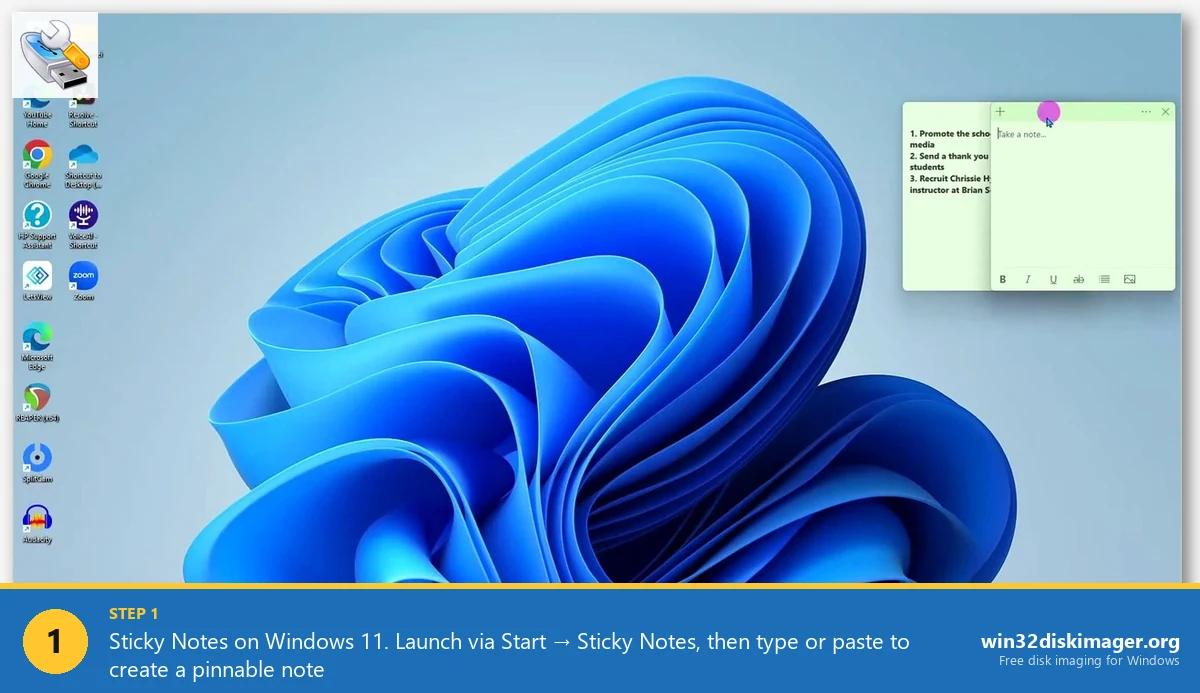
First launch, you’ll land on the Notes list (a small window showing all your notes as cards) with one default note. The list window is the hub. Individual notes are separate small windows you can pin anywhere on any virtual desktop.
Keyboard Shortcuts You Actually Need
This is the part nobody documents. Real list:
- Ctrl+N new note (only when the Notes list is focused)
- Ctrl+D delete the current note (prompts for confirmation)
- Ctrl+B / Ctrl+I / Ctrl+U bold / italic / underline
- Ctrl+T strikethrough (yes, T not S, don’t ask)
- Ctrl+Shift+L toggle bulleted list
- Ctrl+Home / Ctrl+End jump to top / bottom of the note
- Ctrl+A select all
- Ctrl+F find (in the Notes list window, searches across all notes)
- Esc close the current note (note stays, just hides the window, it’s still in the list)
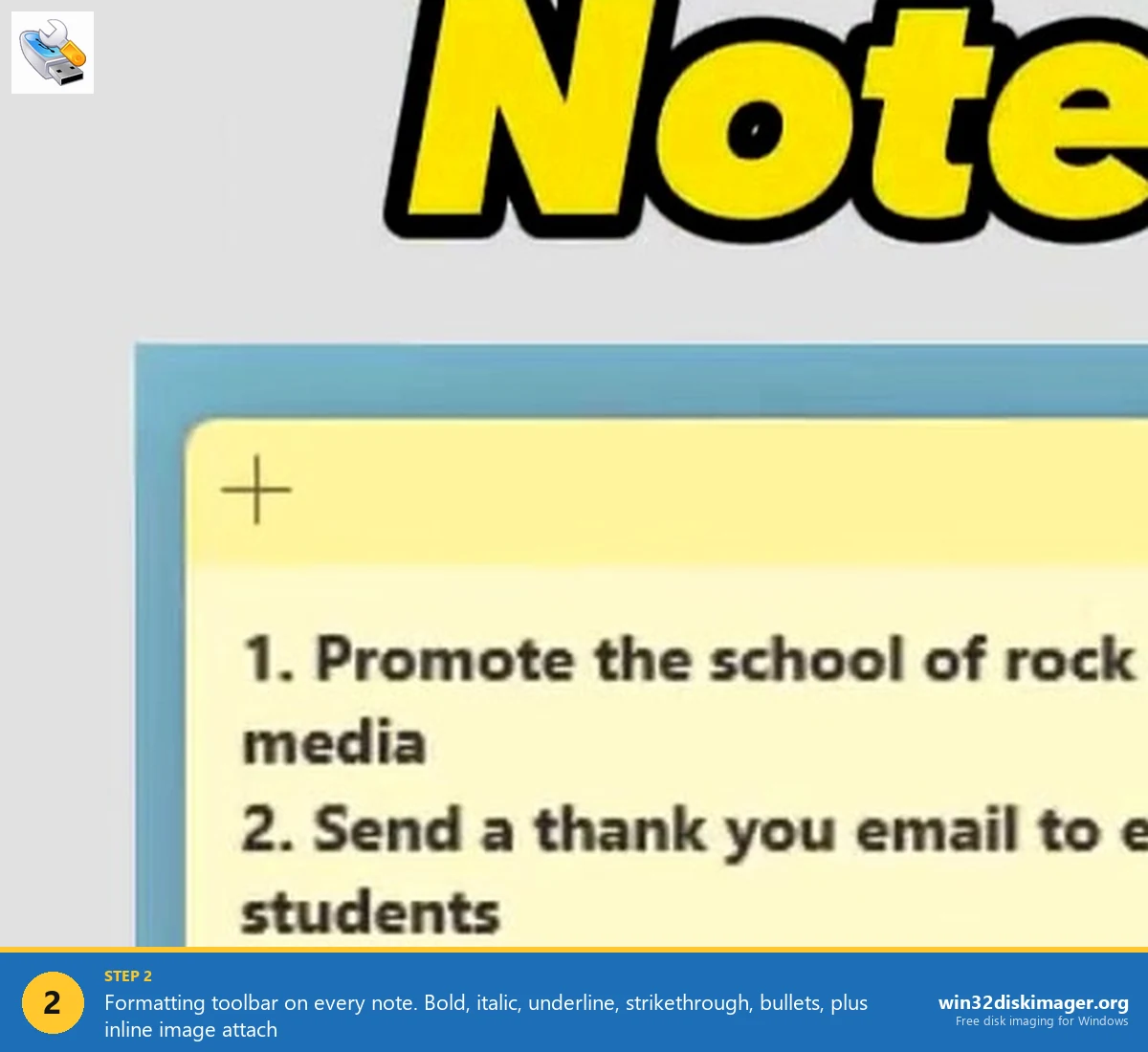
💡 Pro tip: The formatting toolbar at the bottom of every note has a little image icon on the far right. You can attach images inline to a note, Microsoft Paint screenshots, clipboard images, saved PNGs. They embed into the SQLite DB, not referenced externally, so they sync properly.
Setting Up Cross-Device Sync
This is the killer feature that people miss. Once you sign in with a Microsoft account inside the Sticky Notes app, your notes sync to:
- Other Windows PCs you’re signed into with the same account
- OneNote on iOS and Android (under the “Sticky Notes” tab, the OneNote mobile app is where you read/edit notes on your phone)
- Outlook Web App (outlook.live.com or outlook.office.com), where there’s a Sticky Notes panel accessible from the left rail icon
- Microsoft Whiteboard (if your org uses it)
To enable: click the gear/Settings icon in the Notes list window → Sign in → pick your Microsoft account. Sync kicks in immediately. There’s no toggle, once you sign in, sync just happens in the background on change.
⚠️ Heads up: If you’ve got a work/school account and a personal Microsoft account, Sticky Notes only supports one at a time. Switching accounts signs you out of the first one’s notes and shows a different note set. There’s no “merge” option, this has been a pain point on UserVoice for years.
Color Coding Notes (and Why I Do It)
Every note has a three-dot menu in the top right. Click it to pick from seven colors: yellow (default), green, pink, purple, blue, gray, black. These are also the colors available in Outlook Web’s Sticky Notes panel.
My system, which is arbitrary but consistent:
- Yellow for active TODO
- Green for reference info (WiFi passwords, IP addresses, one-line cheat sheets)
- Pink for WIP (work-in-progress) that needs finishing
- Blue for ideas/shower thoughts I don’t want to forget
- Gray for archived / done but not ready to delete
Honestly, the system is just a visual scanning aid. When I’ve got 8+ notes on screen, glancing at colors is faster than reading titles.
The Cortana Integration Nobody Uses
Tucked away in Settings is Enable insights. Turn it on and Sticky Notes will detect phone numbers, addresses, flight times, and email addresses, and underline them with subtle actionable links. Clicking a phone number opens the Phone Link app. Clicking an address opens Maps.
It was called Cortana integration back in 2019, now it’s just called insights. Works offline (it’s a local NLP model), doesn’t send note text to Microsoft. Only useful if you paste a lot of contact-like data into your notes, which I don’t, so mine stays off.
Backing Up Your Notes (Before You Reinstall Windows)
Every time I reinstall Windows, I back up Sticky Notes manually. OneDrive sync should handle it, but I’ve seen sync desync itself after account re-auth and lose 3-4 notes that hadn’t synced yet.
The file to grab:
%LocalAppData%\Packages\Microsoft.MicrosoftStickyNotes_8wekyb3d8bbwe\LocalState\plum.sqliteThat’s a single SQLite database with every note, color, position, and attached image. Copy it to a flash drive, OneDrive folder, or anywhere outside AppData.
To restore after reinstall: install Sticky Notes fresh (Microsoft Store), launch it once so the folder structure generates, close the app completely (kill it in Task Manager if needed), replace the plum.sqlite with your backup copy, relaunch.
Same trick works for migrating from one user profile to another on the same machine, or even cloning a full Windows install with Win32 Disk Imager after you’ve got your sticky notes exactly how you want them on a clean build.
Exporting Notes to Plain Text
There’s no built-in export. The plum.sqlite can be queried with any SQLite client. The notes table is literally called Note, and the content lives in a column called Text (with basic HTML formatting preserved).
Quick one-liner with sqlite3.exe (which you can grab from sqlite.org as a portable exe):
sqlite3 plum.sqlite "SELECT Text FROM Note;" > notes.txtOutput has HTML tags mixed in (<p>, <strong>, etc.). Run it through a quick regex or pipe to Html2Text if you need clean plaintext.
FAQ
Where are Sticky Notes stored on Windows 11?
%LocalAppData%\Packages\Microsoft.MicrosoftStickyNotes_8wekyb3d8bbwe\LocalState\plum.sqlite is the actual database. Paste that path into File Explorer’s address bar and hit Enter to jump straight there.
Why did my Sticky Notes disappear after a Windows update?
Most likely the app got reset during a feature update and your notes got stashed in plum.sqlite.bak or a similar backup. Browse to the LocalState folder and look for backup files. Rename them to plum.sqlite (after moving the empty one out of the way), relaunch the app. Works about 80% of the time.
Can I use Sticky Notes without a Microsoft account?
Yes, fully. You just don’t get cloud sync. Notes stay local to that one PC. Perfect for air-gapped machines, kiosks, or if you’re privacy-sensitive about what Microsoft knows.
Does Sticky Notes have a dark mode?
Settings → Color mode. Pick Light, Dark, or “Use system setting.” The dark mode is a little awkward, the note color tints still show but everything else goes dark. Makes yellow and pink notes look muddy. Most people I know leave it on Light even when the rest of Windows is dark.
Can I pin a note on top of every window?
No, not built in. You can pin notes to the taskbar or pin them to a specific virtual desktop, but there’s no “always on top” option like Notepad has. Third-party tools like Microsoft PowerToys’ Always On Top feature (Win+Ctrl+T) can force any window, including a Sticky Note, to stay on top.
Wrapping Up
Sticky Notes on Win 11 is the one built-in Microsoft app I’d genuinely miss if it disappeared. It’s fast, synced, scriptable through SQLite, and the keyboard shortcuts make it a real note-taking tool rather than a toy. Back up that plum.sqlite file once a month, sync to OneDrive for free, and you’ve got a distributed note-taking system that costs nothing. If you’re about to rebuild a Windows install and want to keep those notes safe across the migration, image the drive first with Win32 Disk Imager so you always have a fallback.
Related Guides
Pair this guide with the rest of the Win32 Disk Imager knowledge base. These cover the adjacent workflows you’ll hit when working with disk images, bootable USBs, and Windows partition management.
- Windows 11 Visual Effects: Best Performance Options — Nuke the 17-checkbox Performance Options dialog for underpowered laptops, tablets, and mini-PCs — plus the Accessibility animations toggle most guides miss.
- Disable Thumbnail Preview in Windows 11 File Explorer — Turn off File Explorer thumbnail generation for faster folder loads and less thumbcache corruption.
- Processor Scheduling: Programs vs Background Services — Flip the Win32PrioritySeparation setting for headless servers, Plex boxes, and CI runners.
- How to Use Win32 Disk Imager — Complete Beginner Guide — The full reference for the Win32 Disk Imager tool itself — install, UI walkthrough, and common workflows.